Add New Buyer
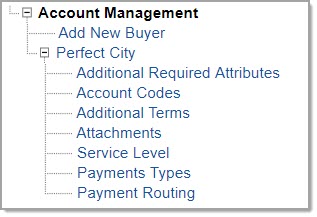
Select the Add New Buyer option from the menu tree located in the left frame of the page.
The Manage Buying Organizations window opens to the Manage Buyers view.
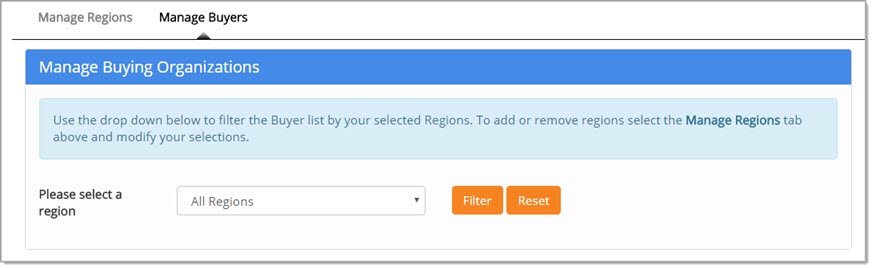
Use the drop down menu to select a region.
Select Filter.
A list of Buyers available within the selected region will display.
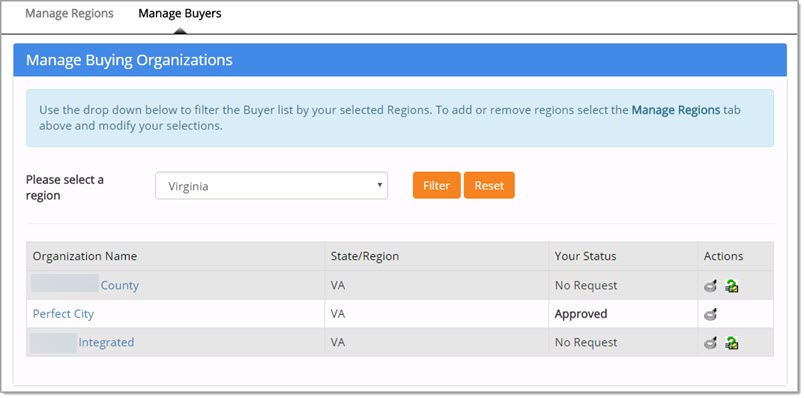
Listed below is the information shown for each organization:
-
Organization Name - The name of the buying organization available in the region selected.
The Organization Name is an active hyper link and may be selected to view the Buyer Information including contact details. -
State/Region - Indicates the state or region of the buyer.
-
Your Status - Identifies your current status in relation to the Buying Organization.
Possible statuses include: -
-
No Request - Your organization has not yet requested to do business with the buyer.
-
Approved - Indicates the buyer has approved you as a supplier.
-
Denied - The buyer has denied your request to do business with them.
-
Pending - The buyer has yet to approve or deny your organization doing business with them.
-
Actions
|
Icon |
Meaning |
 Send Approval Request to Buyer Send Approval Request to Buyer |
Select to send a request to the buying organization. If the buyer requires you to accept terms and conditions in order for them to process your request, the page will instantly refresh to display those terms and conditions. Read through and at the bottom of the page, you will have the option to Accept the terms. View sample image. Your approval request will then be sent and the buyer will be alerted via e-mail that your organization would like to conduct business with them through the WebProcure system. The Your Status column will update automatically to Pending and the Send Approval Request to Buyer icon will no longer be visible in the Actions column. |
 View Buyer Info View Buyer Info |
Select to view the contact information for the buying organization. Once the Buyer Information window is opened, there are two tabs available: General Information and Additional Information. General Information provides main and remittance contact information. The Additional Information tab, displays any supplemental information provided by the buyer. View sample image . |


