Commodity Approver
Select the Commodity Approver option from the Workflow menu under Administration in order to define select the commodities and additional parameters that will force workflow to launch.
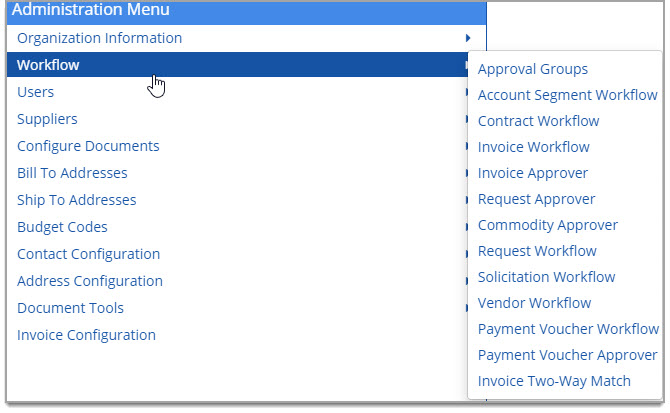
The Commodity Approver page opens.
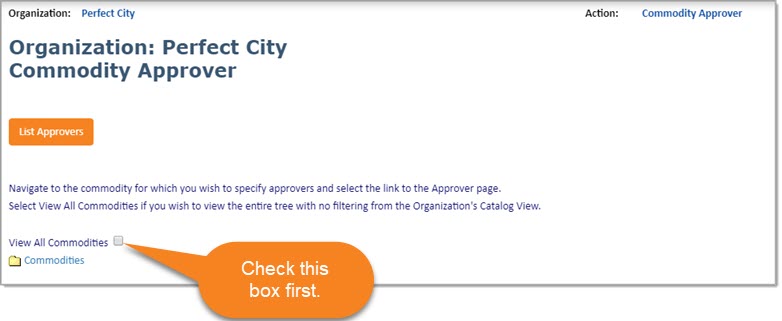
IMPORTANT: To drill-down and select one or more categories, you must first check the View All Commodities check box.
Once the View All Commodities check box is marked:
-
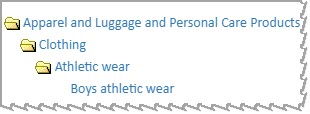
Click the folder
 icon to open the full commodity listing and repeatedly select a folder icon to drill-down to the desired commodity level.
-
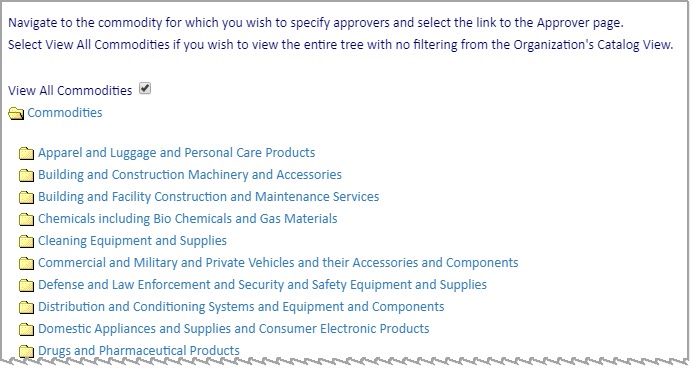
Click the commodity name link to select and configure a workflow approver for that commodity.
The page will refresh to display a complete listing of commodity categories.
List Approvers
Select the List Approvers button to view existing commodity/approver configurations.
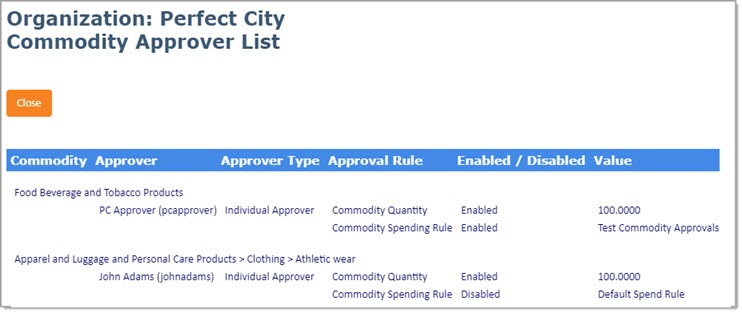
This page is read-only and provides the Commodity, Approver, Approver Type, Approval Rule, status (Enabled / Disabled) and Value.
Click Close to return to the Commodity Approver page.
Configure Commodity Approval
Click the Commodity Name hyperlink to configure workflow for commodities.
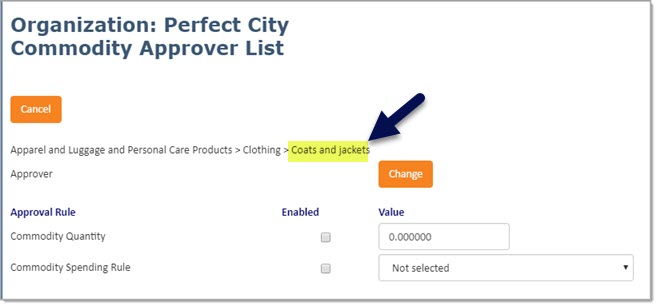
Select Cancel to discard any changes or entries and return to the Commodity Approver page.
Using the above image as an example, the Approval Rules will be applied to the Coats and jackets commodity category.
Assign / Change Approver
Select the Change button to assign an approver for the first time or change an existing approver.
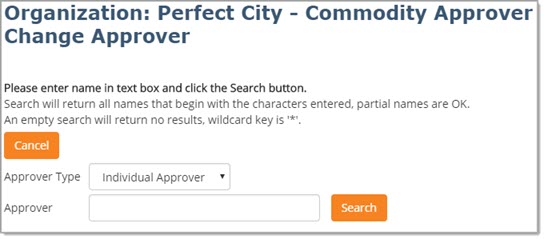
Use the drop-down menu to choose between an Individual Approver or Approval Group.
The Approver text box has type-ahead functionality.
Begin entering the name of the approver or approval group and the system will retrieve matches within the system.
An asterisk (*) may be used as wildcard in conjunction with other letters.
An asterisk (*) may be used by itself, as wildcard to return a complete listing of users.
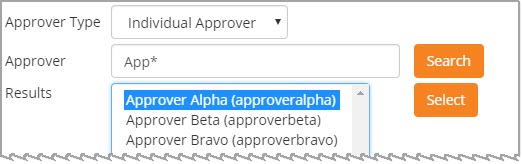
Click the name of the approver or approval group and then click the Select button to designate them as the Commodity Approver.
You will be returned to the Commodity Approver List page.
Your selected approver or approval group will be displayed:
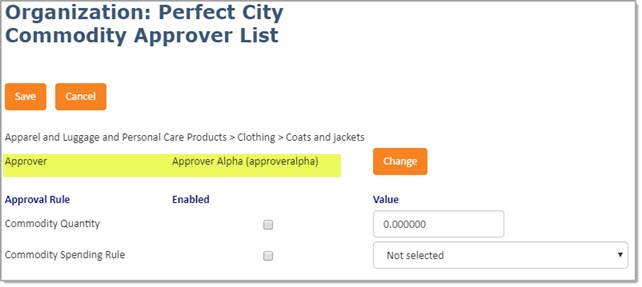
Repeat the above steps to choose an alternate individual approver or approval group.
Approval Rules
There are two available rules that may be configured:
-
Commodity Quantity - Workflow will be launched if one or more line items:
-
in the designated Commodity Category, and
-
total quantity exceeds the number entered in the Value text box.
-
-
Commodity Spending Rule - Workflow will be launched if one or more line items:
-
in the designated Commodity Category, and
-
total amount exceeds the amount defined in the chosen spending rule.
-
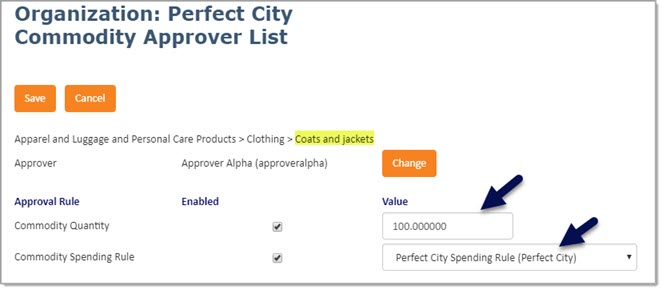
Click the Enabled check box to enable the desired Approval Rule.
Commodity Quantity
Enable the Commodity Quantity Approval Rule by checking the Enabled box in the top line.
Enter a quantity value that will trigger the workflow to launch for this specific commodity.
Sample image above shows that the workflow rule will launch if one or more-line items total quantity exceeds 100 items in the Coats and jackets category.
Commodity Spending Rule
Enable the Commodity Spending Approval Rule by checking the Enabled box in the second line.
Use the drop-down menu to choose an existing Spending Rule.
Sample image above shows that the workflow rule will launch if one or more-line items total amount exceeds the parameters set in the Perfect City Spending Rule.
Once the Commodity Approver page is configured as you wish, be sure to Save.
Your newly created Commodity Approver configuration may be viewed by selecting List Approvers.
Cancel discards any changes or entries without saving.