Reject
By default, each document is displayed in collapsed format as indicated by the right facing arrow. 
To expand the details of a document that is pending approval, select the downward facing green arrow. 
NOTE: For Invoices, you will need to select View Invoice from the Actions column to view line item details.
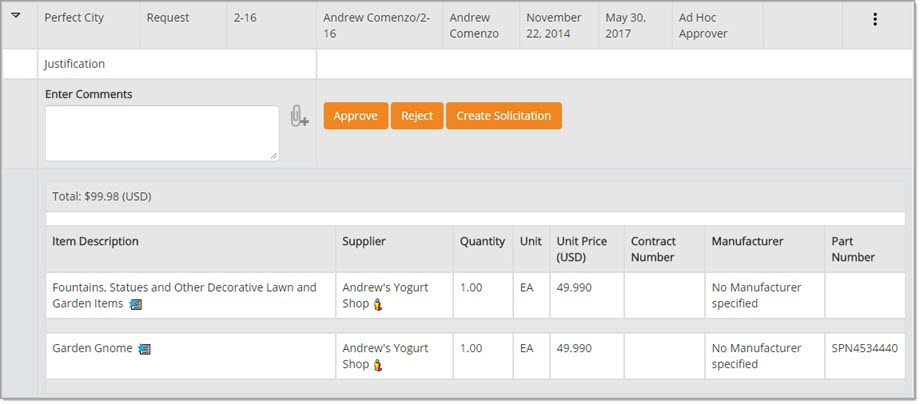
To reject a document, justification comments must be entered in the Enter Comments field.
Enter comments, click Reject.
This action is immediate. The document will be re-routed back to the creator advising that it was rejected.
The Document Approval Inbox will automatically update; the rejected document will no longer be visible on this page.
Also, if the contract workflow included the vendor to electronically sign, the following alert message will display, reminding you to notify the vendor.
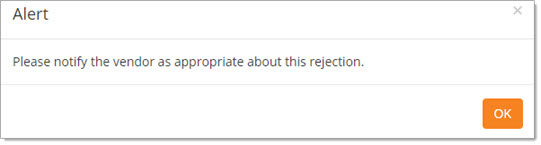
Click OK to acknowledge the alert and be sure to notify the vendor about the rejection.
NOTE: If you are reject a Contract, the application will remove the signed PDF contract document that displays on the Contract Summary page, thereby preventing it from being downloaded.
Reject to Supplier (Invoices)
This option is visible only on Invoice type documents that have been submitted by a vendor from the Vendor Portal.
Select the Reject to Supplier button.

A reason for the rejection must be entered into the Comments field.
If you select Reject to Supplier before entering comments, the following alert will display:
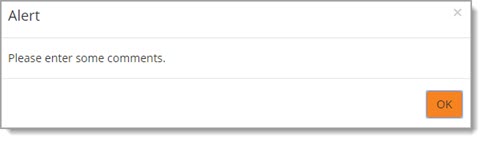
Click OK to acknowledge.
Enter Comments as required.
This action is immediate.
The Document Approval Inbox will automatically update; the rejected document will no longer be visible on this page.
The supplier will be notified that the invoice has been rejected and will have visibility into the reason entered in the Comments field.
The supplier has the option to edit and re-submit or cancel and resubmit or simply just cancel.