Reviewer Inbox
The Document Reviewer List displays all documents that users have requested your review. Your approval is not required for this document to move forward through its approval workflow. You are able to comment on the document and inform the document’s owner or the document’s approvers of comments you may have regarding the request or solicitation.
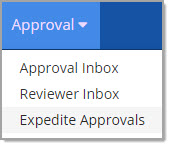
Select Reviewer Inbox from the Approval drop-down menu.
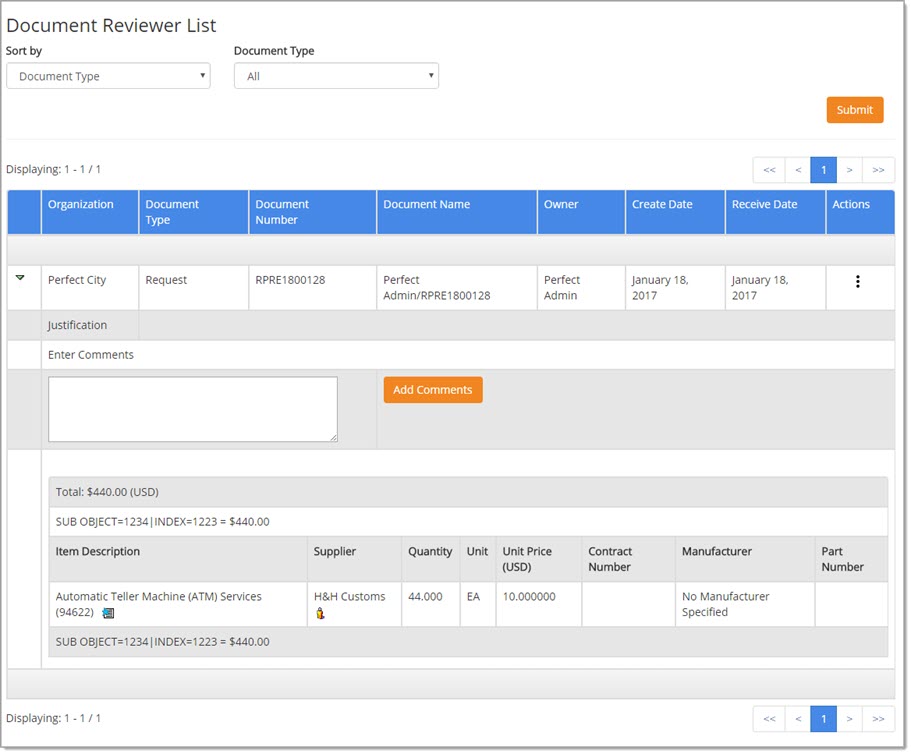
The Document Reviewer List opens:
Search Documents
Refine the listing of documents by applying one or more filters.
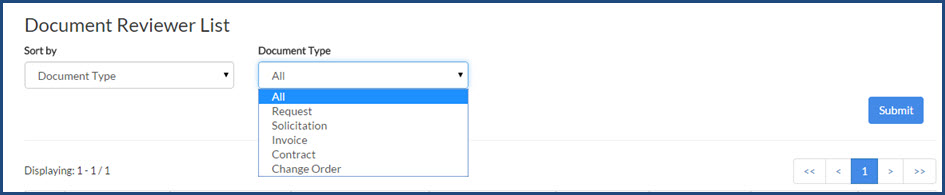
Sort by - Document Type - Use the drop-down menu to sort the displayed documents in document type order. Options include: Organization Name, Document Name, Owner, and Create Date.
Document Type - Use the drop-down menu to display a particular document type that requires approval. Options include: All, Request, Solicitation, Invoice, Contract, or Change Order and will depend on the WebProcure modules implemented by your organization. The default option is All.
Once filters have been applied, click Submit to commit those filters.
Search Results
The page will refresh to display documents matching the chosen filters. The Action icons and buttons will vary depending upon the document type and history of the document.
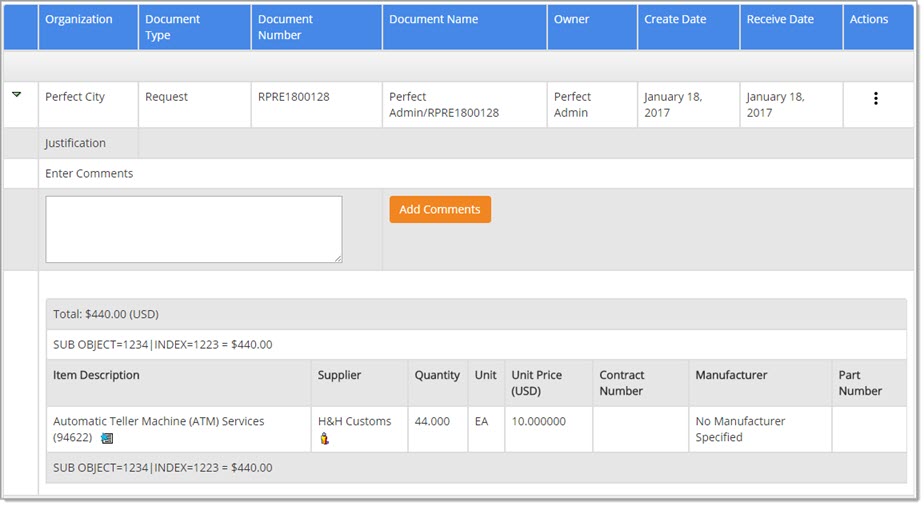
By default, each document is displayed in collapsed format as indicated by the right facing arrow. 
To expand the details of a document that is pending approval, select the downward facing green arrow. 
The Supplier Information  icon is available for selection;
allowing users to view the supplier profile.
icon is available for selection;
allowing users to view the supplier profile.

Document Type
Line item details will vary based on the Document Type.
Click a link below to view the various document types:
NOTE: For solicitation documents, the full details of the solicitation package are better viewed by selecting the View Solicitation icon from the Actions column.
Review
Use the Action icons on the Reviewer Inbox page and the hyper linked Document Name or Document Number to open a summary of the document being submitted for your review.
If necessary, enter up to 2000 alpha numeric characters into the Enter Comments text box.
Once complete, click Add Comments. A confirmation box will display:
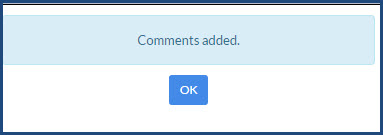
Click OK to acknowledge and return to the Document Reviewer List.
View Entered Comments
Entered comments are accessible by accessing the Approval Map  for the document.
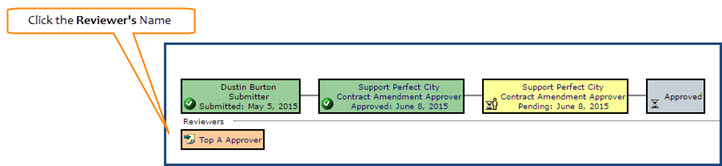
Click the reviewer's name in to open the Reviewer Information window:
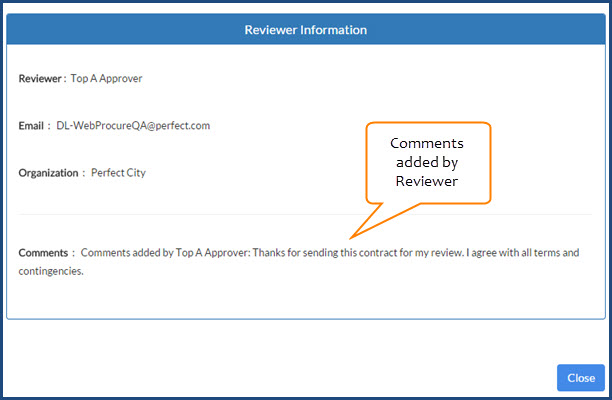
Click Close to return to the Approval Map page.
The Action options are discussed in detail in the Actions - Reviewer Inbox topic.