Contract Header - Custom Fields
The Custom Fields section will only be displayed if your organization has this feature implemented. If enabled, it will contain fields specific to your organization or inherited from your parent organization. These may be eight entry fields defined by the organization or they may be the mapped fields from the Field Library. If your organization or parent organization has enabled the Field Library functionality and has mapped those custom fields to the CONTRACT - HEADER, then they will be displayed here. Field types could be one or more of the following: Instructions, Text Response, Rich Text Response, Attachment Response, Date Response, Yes/No, Drop-Down, or Numeric.
NOTE: Enabling Custom Fields (Clauses) requires the assistance of an internal Proactis Administrator.
Required
Required Fields - If the fields or sections were marked as Required when they were created in the Enterprise Administration module, then you will be unable to remove them from the contract header.
Optional
Optional Fields - If the fields and sections were not marked as Required when they were created in the Enterprise Administration module, then you will be able to choose to include or not to include them on the contract header.
Editable
Editable - Depending on whether or not the Field was created with the Editable Attribute, you will be able to edit the content.
-
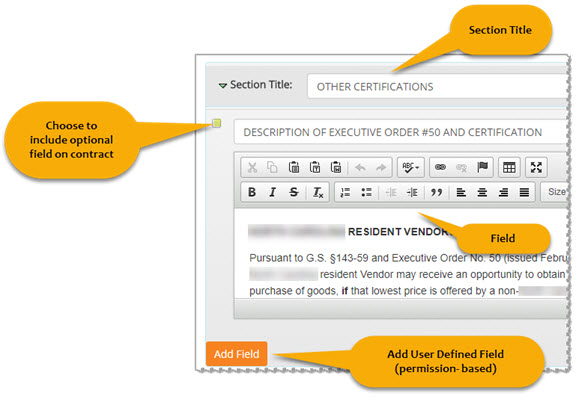
Click into the Field name or Section Title to make edits as needed.
-
Check the box to include field on the contract.
NOTE: Be aware that edits made to the Field or Section during the contract creation process will not be saved back to the Enterprise Administration module.
-
Click into the Field name or Section Title to make edits as needed.
-
Check the box to include field on the contract.
NOTE: Be aware that edits made to the Field or Section during the contract creation process will not be saved back to the Enterprise Administration module.
User Defined
If you have the appropriate permissions, you can create your own Custom Fields on the Contract Header Information page.
Add Field
NOTE: You must be assigned the Add User Defined Field in order to add sections and fields to a contract that is being created or edited.
If you have the Add User Defined Field permission, you will be able to create a user defined field for the contract. If this button is not visible, it has not been assigned to your account, please contact your WebProcure Administrator for additional information.
To manually add a Field to the solicitation, click Add Field.

The page will refresh to display a new, empty field.

Enter a descriptive Field name.
In the Attributes section, use the Field Type drop-down menu to determine the type of Field to be added.
Options include:
- Instructions - Use this type to provide informative, read-only information to the suppliers.
-
Text Response - This type of field allows suppliers to provide a simple text response. A default value may be entered.
-
Rich Text Response - This field allows suppliers to provide a text response that may also include hyperlinks and additional formatting.
-
Attachment Response - Create a field in which suppliers will attach a document as their response.
-
Date Response - Use this type when you would like suppliers to select or enter a date as their response.
-
A default value may be set.
-
Yes/No Response - Use this type when you would like suppliers to answer Yes or No as their response.
A default value may be set. -
Drop-Down Response - Use this type when you would like to create a listing of values that the supplier can choose from as their response.
-
Numeric Response - Use this type when you would like suppliers to enter a numeric value as their response.
A default value may be set.
Depending on the selected Field Type, the Attributes section will refresh to display additional options for selection.
Delete Field
Once a field has been added, it may be removed simply by selecting the Delete  icon.
icon.
A confirmation message will display:
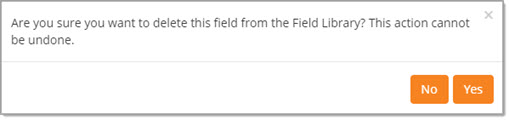
Click OK to proceed with deletion.
Cancel ends the deletion process; field remains intact.
Add New Section
If users wish to add a brand new section to the Requirements area of the solicitation, click Add New Section.

The page will refresh to display a new section.

Enter a Section Title.
Follow the steps to Add Field.
Delete Section
Once a section has been added, it may be removed by simply clicking the Delete icon.
A confirmation message will display:
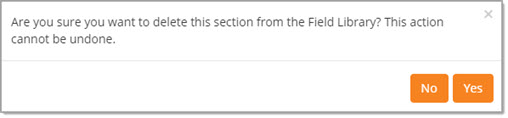
Click OK to proceed with deletion.
Cancel ends the deletion process; section remains intact.
Next Step
When all areas are complete on the Notifications step of the contract, click Next to advance to Notifications step.
Exit returns to the Current Contracts page.