Contract Header - Sub-Contractors/Distributors
NOTE: The Distributors section will only display if the contract is not a Master Contract.
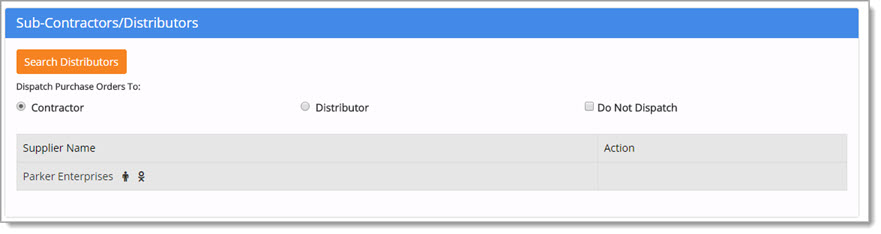
The Distributors section is used to designate the recipient or recipients of the contract related Purchase Orders.
In some cases, the Contractor (aka vendor or supplier) may also be the Distributor.
By default, the added Contractor appears in the Distributor section.
Dispatch Purchase Orders To
-
To Dispatch Purchase Orders To the Contractor, mark the Contractor radio button.
-
To Dispatch Purchase Orders To a Distributor, mark the Distributor radio button.
-
If purchase orders are not to be dispatched at all, check the Do Not Dispatch box.
The application will only allow you to make one selection between Contractor and Distributor.
For example, if you select Distributor the Contractor radio button will automatically be cleared and vice versa.
However, if you select Contractor then the Distributor radio button will automatically be cleared.
If Purchase Orders are not to be dispatched at all, check the Do Not Dispatch box.
To change this and allow Purchase Orders to be dispatched, click this box a second time to clear it.
Add Sub-Contractors/Distributors
To add a Sub-Contractor and/or Distributor, click Search.
The Supplier Search window opens. Visit the Supplier Search topic for more information.
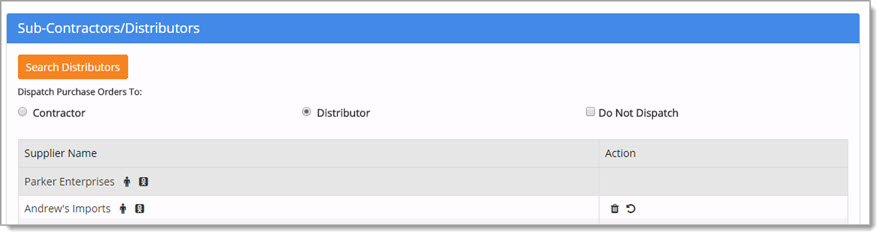
Once you have searched and selected one or more Sub-Contractors/Distributors, their names will display in the Sub-Contractors/Distributors section.
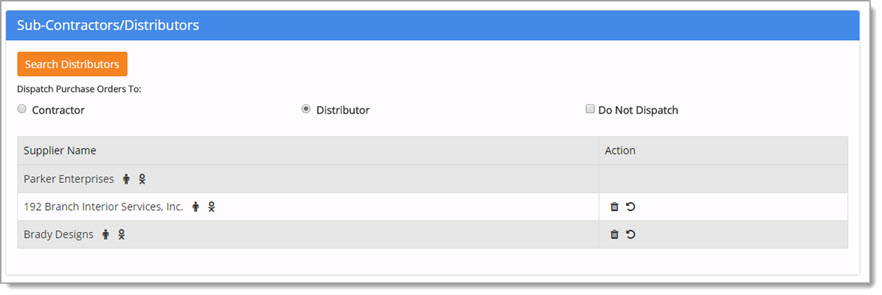
To the right of each Supplier Name, you will see the Vendor Profile  icon.
icon.
Click the icon to view the Supplier Information.

Diversity Information
NOTE: The ability to designate a Diversity Type Allocation will only be available to those organizations that have implemented this feature. Please contact your Web Procure Administrator for more information. Also, this feature is not available on Master Contracts.
The Diversity Information  icon will only be visible to those organizations that have this feature enabled.
If enabled, you may select the Diversity Information icon to open the Diversity Information window:
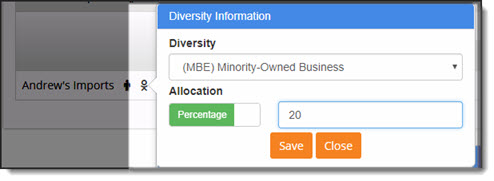
Use the Diversity drop-down menu to select the appropriate Diversity Type for this contractor.
The values available in this drop-down menu will vary per customer and are managed in the Enterprise Admin module.
Please view the topics on managing and assigning Diversity Types for more information.
You may designate a Contract Allocation based on Percentage (default), or Amount.
Use the toggle to switch between Percentage and Amount.
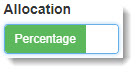
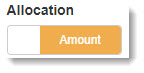
In the text field in the Allocation section, enter a numeric value to represent a Percentage or Value, depending on the toggle setting.
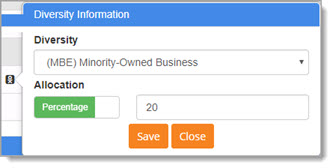
Using the above image as an example, this Sub-Contractor/Distributor is a Minority Owned Business and the allocation for this Contractor (Prime), is 20 percent.
Click Save to commit your selections and numeric entry.
Close will end the Diversity Information selection without saving.
If saved, the Diversity Information  icon will be updated to indicate that a Diversity Type was selected and an Allocation assigned.
Delete Sub-Contractor/Distributor
To remove an added Sub-Contractor and/or Distributor, click the Delete icon.
icon.
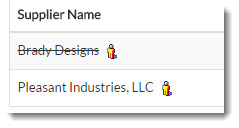
The Distributor will still appear, however, a line will be placed through their name.
Once the contract is saved, the Distributor will be removed.
Undo Deletion
To undo a deletion of a Distributor, select the Undo  icon.
icon.
The line through the Distributor's name will be removed.
Key Points
Key points for Distributors:
-
The list of Distributors on a contract is based on suppliers approved for the agency that is creating the contract. If a Distributor is not an approved supplier for one of the contract's authorized organizations, then that Distributor will not be available in Orders.
-
If a Distributor is no longer valid, but the Contractor (aka vendor or supplier) is also on the Distributors list, the Purchase Order will be dispatched to the Contractor.
-
If a Distributor is no longer valid and there are not any other Distributors listed, then the Purchase Order will be dispatched to the Contractor.