Master Contract - Header Information
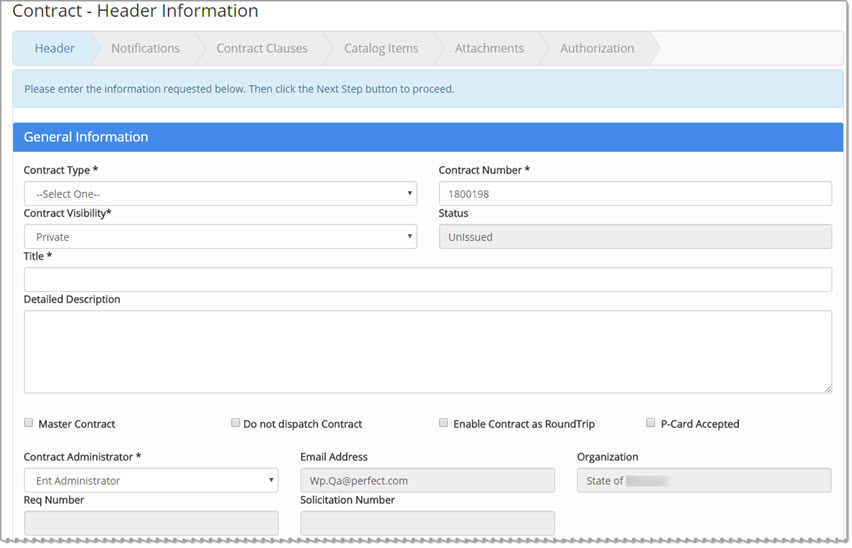
Completing the Header Information page is discussed in detail in its own topic.
See the Contract Header Information topic for more information.
This topic will only focus on the differences when creating a Master Contract.
Commodities
The Commodities section will be pre-populated with the categories that were selected on the Contract - Categories step when the master contract was created.
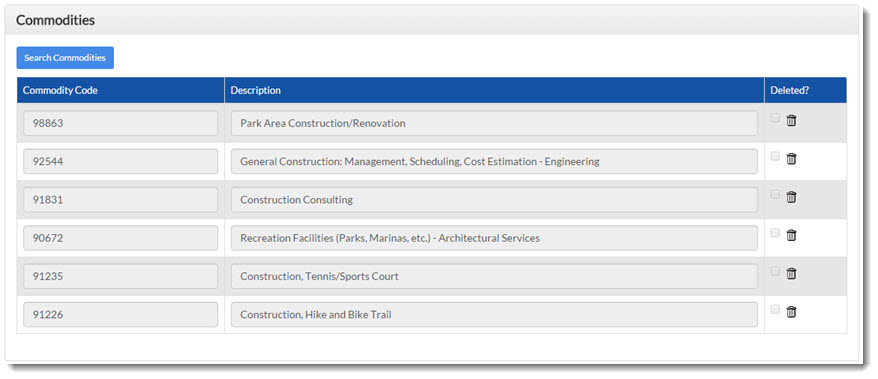
Additional categories may be added as needed and displayed categories removed as needed.
Delete Assigned Commodity
To remove a commodity, click the Delete  icon. A check mark will be placed in the
Deleted? column.
icon. A check mark will be placed in the
Deleted? column.
Once the contract is saved, the category will be removed.
Contractor
The suppliers shown here are the same suppliers from the awarded solicitation.

Click on a supplier name to view and edit, if necessary, their contact and insurance information.
The page will refresh to display the additional fields for the selected supplier.
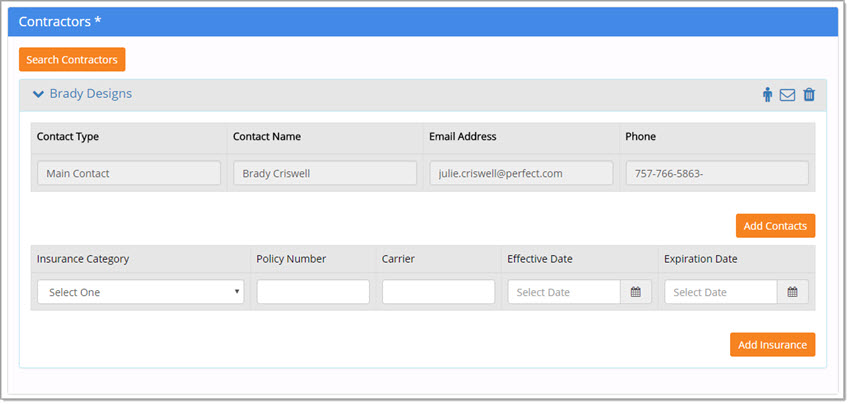
Add Contacts
To add another contact, click the Add Contacts button.
The page will refresh to display 4 additional fields beneath the existing contact listing.

Enter in a Contact Type, Contact Name, Email Address, and Phone for the new contact. The information will be saved when you proceed to the next step in the contract creation. To remove an added contact, simply click the red x located to the right of the contact. A confirmation message will display:
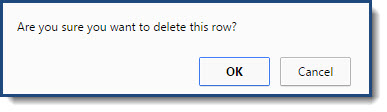
Click OK to proceed with removing the contact.
Cancel ends the removal process; added contact remains intact.
NOTE: The original contact information cannot be removed.
Add Insurance
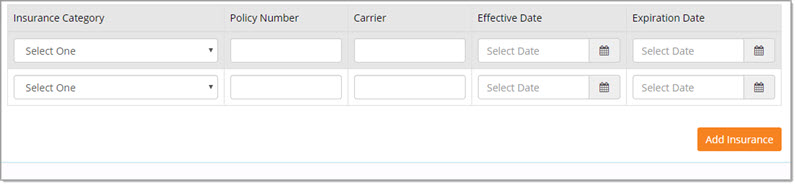
If known, the supplier's Insurance information should be entered. Select an Insurance Category from the drop-down menu.
Enter Policy Number and Carrier. Use the calendar  icons to select an Effective and Expiration Date applicable to the insurance policy.
Click the Add Insurance button to display another row which will allow you to enter the information for another insurance policy.
Repeat these steps for each policy to be added.
Contractor Actions
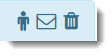
 Select the Supplier Information icon to view the supplier's profile.

 Select the Send Email icon to open, create, and send an email message
directly to the email address associated with the supplier.
Select the Send Email icon to open, create, and send an email message
directly to the email address associated with the supplier.
Your primary email utility, such as Microsoft™ Outlook, etc. will open.
 Select the Delete icon to remove the supplier from the contract.
A confirmation message will display asking you to confirm the removal of the supplier from the master contract.
Click OK to proceed with removal.
Click Cancel to end the removal process; supplier will remain on contract.
The remainder of the Contract Header Information page is the same as when a standard contract is created.
Visit the Contract Header Information topic for standard contracts.
Proceed with contract creation process.