Switch Organization
Users associated with more than one organization may easily switch to another organization using the Organization menu.
Select your current hyper linked Organization to expand the Organization Menu as shown in the sample image below:
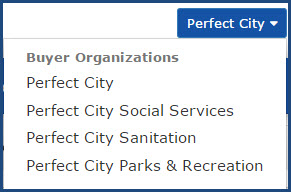
Your current organization is shown in the blue box.
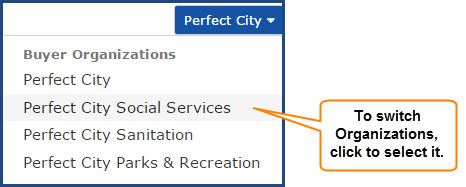
To switch organizations, simply select one from the listing to begin performing actions under that organization.
The home page will refresh to display the newly selected organization in the upper right corner.
The menu bar options may also change depending on the permissions you have for that particular organization.
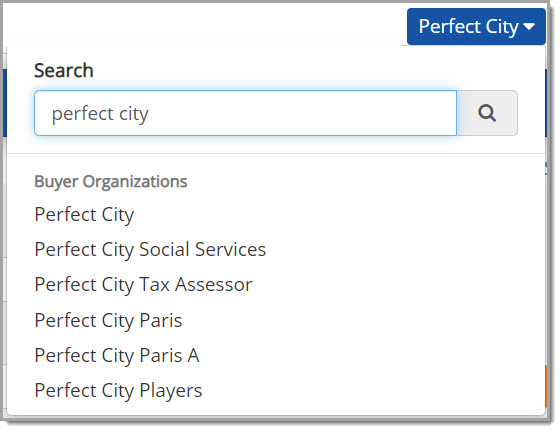
Users associated with more than five organizations , instead of a drop down list will be able to use the type-ahead search for Organization Name, which will allow a partial or full search of the name and narrow the results to show the applicable organization(s) to select.
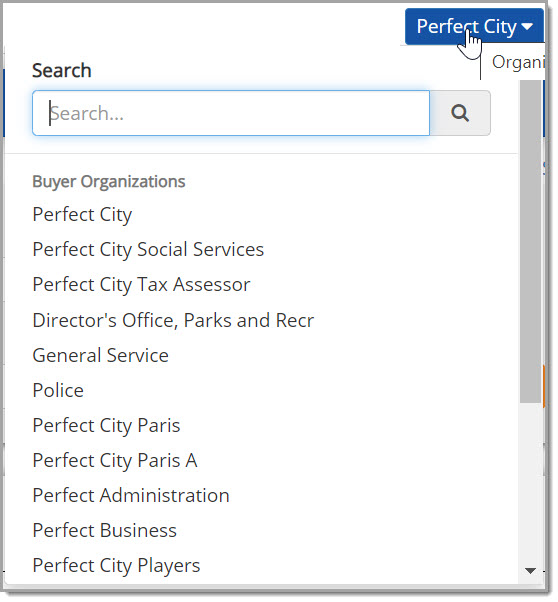
If preferred, you can still scroll through the entire list of organizations to select one.
NOTE: If your organization utilizes Dashboards and has enabled the View All Sub-Organizations setting in the Admin module, then the data elements displayed on your dashboard will include data for your organization as well as any child organizations.