Invoice Summary
The final step in the invoice creation process, is the Summary.

This page allows you to review all of the invoice details for accuracy.
NOTE: For those customers that utilize Account Code Distributions
, in all instances where Account Codes are displayed, you may select the information  icon to view the code descriptions.
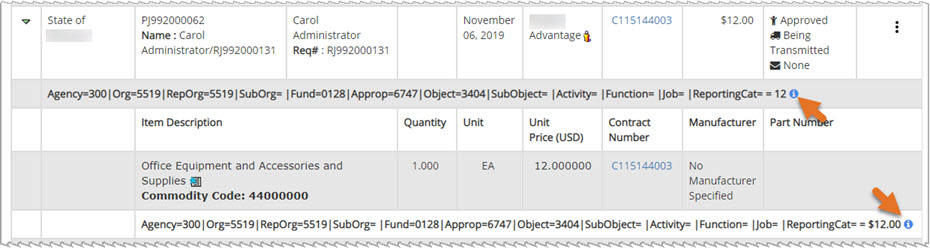
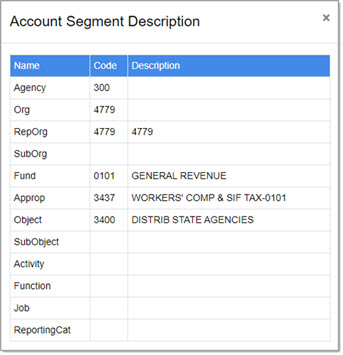

Click the Vendor Profile  icon to view detailed information about the supplier.

If there are any attachments, those files will display as active hyper links.
Select a link to download and view the attachment.
Scroll to the bottom of the page for the available actions.
Discard Draft
Click Discard Draft if you wish to exit the Invoice creation process without continuing.
A confirmation message will display:

Click Yes to proceed with discarding the changes. You will return to the Invoice/Credit/Payment Voucher List page.
Click No to close message and return to creating the Invoice
Previous
To return to the previous step in the invoice creation process, click Previous.
Close
Selecting Close will exit the Invoice Summary without submitting it.
Invoice will display as Created.
Invoice History
To view a History Log of the action taken and the user that performed that action on the Invoice, select the Invoice History button.
View Invoice History topic for additional details.
Submit
When matching is complete, click Submit.
An acknowledgement message will display:
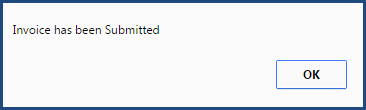
Click OK to acknowledge that the Invoice was submitted.
The Invoice can now be located on the by selecting View All from the Invoice drop-down menu.
If an Invoice Workflow is in place, the Invoice will proceed to the next step in the approval process.
NOTE: Close, Invoice History, and Submit buttons are available at the top and the bottom of the page.