Receipt History
If the Purchase Order Status is 'Sent to Fax', 'Sent to Email' or 'Sent to Print' indicating that the Purchase Order has been delivered to the vendor Sent to Print means that it has not been sent to the vendor, but is treated as such for the purposes of receiving), then the View Receipt History option will be available for selection from the Actions column of the Receiving List page.
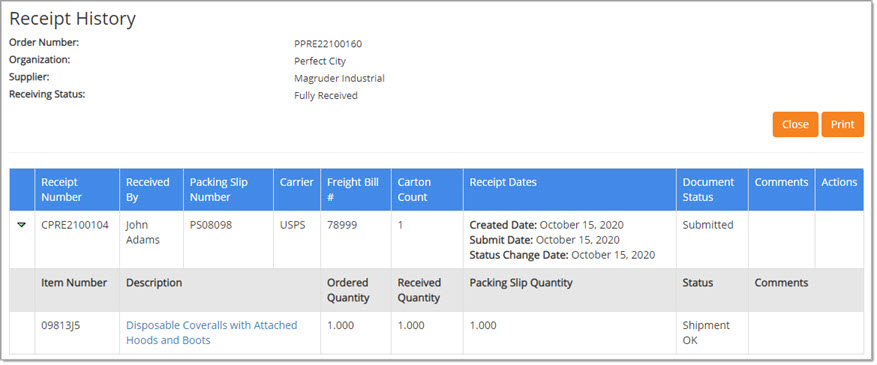
The Purchase Order Number, the user’s Organization, the Supplier name and Receiving Status are displayed at the top of the page.
Close returns to the Receiving List page.
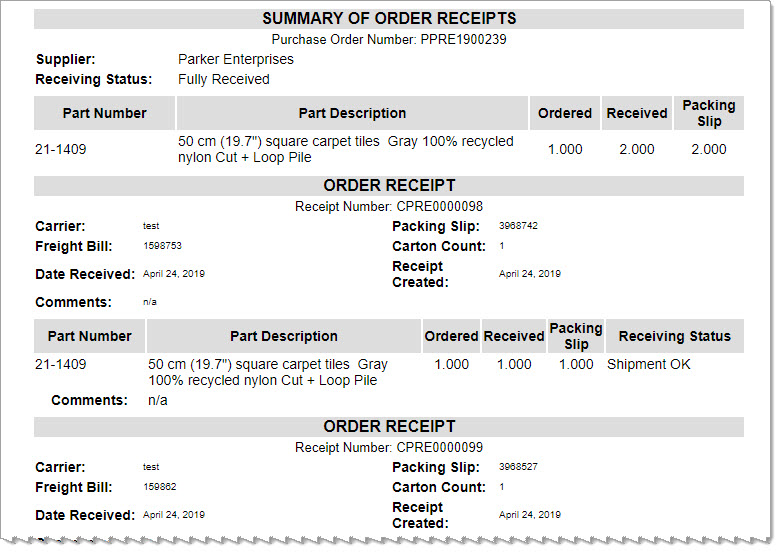
Print opens a printable view of the receipt. View sample image.
The Receipt Number, Received By, Packing Slip Number, Carrier, Freight Bill #, Carton Count, Receipt Dates, Document Status, and Comments are displayed, if they have been entered, for each item received against on the purchase order.
NOTE: Receipt Dates include dates of creation, submission, and status change.
Select the Expand  icon to view details for each Receipt Number, if available, including Item Number, Description of the item, Ordered Quantity, Received Quantity, Packing Slip
Quantity, Status, and Comments.
icon to view details for each Receipt Number, if available, including Item Number, Description of the item, Ordered Quantity, Received Quantity, Packing Slip
Quantity, Status, and Comments.
Select the Collapse  icon to close the expanded receipt details.
If documents were uploaded and attached to the Receipt Entry, a paperclip  icon will be displayed.
Click the icon to open the Attachments window.
See sample image below:
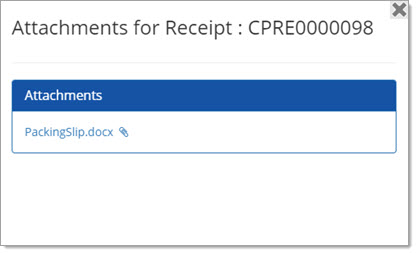
The attachment file name is an active hyper link and may be selected to download, view, and save the file.
Close to return to previous page.