Multi-Round Solicitations
Overview
Those customers that choose to enable Multi-Round Solicitation functionality will have the ability to perform additional actions after completion of scheduled event activity. Once a solicitation closes, during the review and evaluation of responses, buyers may now choose to award the solicitation or launch a new round. When choosing the latter option, the original or previous solicitation round will display a status of New Round Created and may include one, multiple or all responding vendors. This functionality allows for multiple rounds, which may be used by buying organizations to address subsequent lots or issues or restart the solicitation anew while maintaining the integrity of the solicitation record. Rounds may be used for post-event scope refinements within the same solicitation event, as well as restarting the solicitation anew with the goal of achieving best and final offer negotiations.
Additionally, buyers may now recommend one or more responding vendors as a Finalist. Designating vendors as Finalists, allows buying organizations to refine the listing of potential vendors and focus only on those vendors that will best meet the buyer’s needs.
Some of the key points surrounding multiple solicitations round creation and management include:
-
A new Multi-Rounds Enabled setting to enable this functionality, has been added to the Solicitation Management section of the Edit General Org Info page.
-
Once enabled, permissions may be granted to individual users in individual organizations. Please note, that permissions should only be granted to users who will use this powerful functionality responsibly.
-
Buyers may mark one or more participating vendors as a Recommended Finalist.
-
The new round essentially creates a child solicitation whereby the original solicitation serves as the parent. The same solicitation number is used for new rounds; each time a new round is created, users will be able to easily identify the solicitation as a round.
-
New solicitation rounds may be created for solicitations WITH and WITHOUT line items.
-
New solicitation rounds may be created on solicitations in which there are no vendor responses.
-
New solicitation rounds are created as a Private solicitations and may not be changed to Public.
-
New solicitation rounds cannot be created if one or more items are already awarded.
-
The Solicitation Type of a new solicitation round cannot be changed.
-
New vendors, who did not participate in the original solicitation, may not be added to a new solicitation round. In a public solicitation context, this may allow buyers to maintain the benefits of any initial pre-qualification efforts that were previously completed.
-
Round comparison may be performed when viewing Solicitation History.
-
Vendors are notified via Follow-up Solicitation Response Invitation email that they are invited to participate in another round of the solicitation. The functionality will not notify vendors that any given round is a final round, as there will always be an opportunity for an additional round, until the solicitation is awarded.
-
Vendors solicitation responses are retained from original or previous rounds, so they may remain informed of their prior effort. Vendor responses for additional rounds are not limited, in any way, as a result of a prior round.
-
If a solicitation has multiple rounds yet no award has been made, a message displays at the top of the Solicitation Summary page to remind you that the solicitation is part of a multi-round event and you should access the most recent round for evaluation and award activities.
-
Vendors will need to draft and submit responses for each round, in order to participate in that round.
-
Responses from all rounds of the solicitation are included in the Export Bid Tab report.
-
When the final round is awarded and finalized, the previous round results will be moved to the Archived listing along with that final solicitation round.
-
For solicitations created outside of a user's buying organization, visibility of New Round information is limited and only solicitation entry will be displayed (Round 1).
NOTE: Please contact your Proactis Customer Operations Manager for more information regarding the activation and usage of the new post event multi-round solicitation functionality.
Access Create New Round Action
There are several ways to access the Create New Round action:
-
Access the Solicitations drop-down menu, choose Review / Award for either Formal or Informal solicitations.
From the Ended Solicitations listing, select the Create New Round icon from the Actions column.
NOTE: Please be aware that, you will not be able to recommend Finalist Vendor(s), prior to selecting the Create New Round button, using the above method.
-
Access the Solicitations drop-down menu, choose Review / Award for either Formal or Informal solicitations.
From the Ended Solicitations listing, select the Evaluate Supplier Responses icon from the Actions column.
Choose a Select Award Method option. -
-
Choose Review Vendor Documents, click Continue.
Click the Create New Child Round button. -
Choose Award by Item, click Continue.
-
Choose Award by Group, choose the Group.
Click the Create New Round button. -
Choose Award All to One.
Click the Create New Round button.
-
NOTE: Please be aware that, you will be able to recommend Finalist Vendor(s), prior to selecting the Create New Round button, using one of the Select Award Method options.
Recommend as Finalist
Access the Solicitations drop-down menu, choose Review / Award for either Formal or Informal solicitations.
From the Ended Solicitations listing, select the Evaluate Supplier Responses icon from the Actions column.
Finalist selection varies depending on the page you access during the evaluating and awarding process:
-
Award By...pages
-
Review Vendor Documents
Award By Pages
If your organization utilizes the grid layout, the Award By pages will look similar to the image below.
Select the Recommend as Finalist  icon, located
just below the vendor's name.
icon, located
just below the vendor's name.
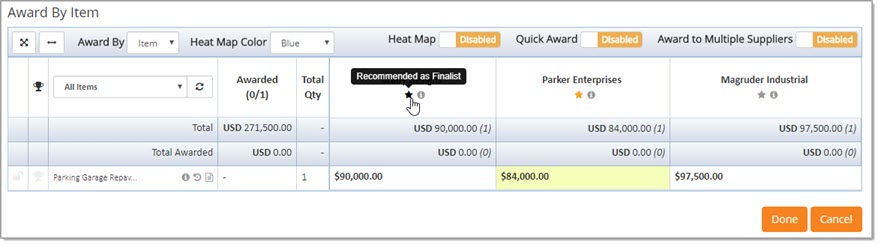
One, multiple or all participating vendors may be marked as a Finalist by following the above action.
When you identify a vendor as a Finalist, the Recommended as Finalist icon changes to orange: 
Also, the response field color changes to light yellow as shown in the example image below:

NOTE: If you enable the Heat Map feature, be aware that the light yellow shade in the response fields that indicate a vendor as a Recommended Finalist, may be hidden with the selected color from the Heat Map. The
When you proceed to the Create New Round step, the Finalist vendors will automatically be invited to respond to the solicitation round.
At the time a new solicitation round is created, you will be able to invite other participating vendors, even if they weren't named as a Finalist, to this solicitation.
NOTE: Once the new solicitation round is created, the list of vendors cannot be modified.
Learn how to Recommend as finalist on a solicitation without line items and with a questionnaire.
Remove Finalist Recommendation
The Recommend as Finalist action works as a toggle.
You select the Recommend as Finalist icon,
located just below the vendor's name, to designate that vendor as a finalist.
To remove a vendor as a Finalist, select the Recommend as Finalist icon, located just below the vendor's name to clear the vendor's finalist designation.
Review Vendor Documents
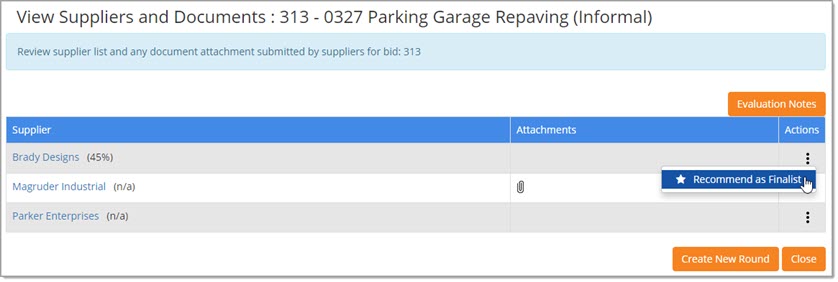
Create New Round
The first step in creating a new solicitation round from a solicitation is to select the Create New Round button.
See the topic above for more information on accessing this button.
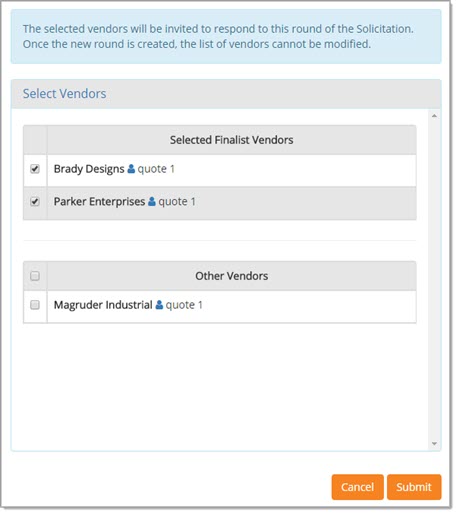
Those vendors that you recommended to be Finalists will appear at the top of the window in the Selected Finalist Vendors section.
Recommended Finalists are pre-selected to be included in the new solicitation round, however, you may clear the check box.
If the vendor does not have a check next to their name, they will not be invited to participate in the new solicitation.
The vendors that participated but were not identified as a Finalist will display at the bottom of the window in the Other Vendors section.
You may select one, multiple or all Other Vendors to be invited to the new solicitation round.
To select one of the Other Vendors, simply check the box located to the left of their name or to include all Other Vendors in one step, check the top box in the Other Vendors section.

NOTE: New vendors, who did not participate in the original solicitation, may not be added to a new solicitation round. Once a new solicitation round is created, the list of vendors cannot be modified.
The Vendor Profile  icon is located to the right
of each vendor name.
icon is located to the right
of each vendor name.
Click the icon to view Supplier Information. See partial example image below:
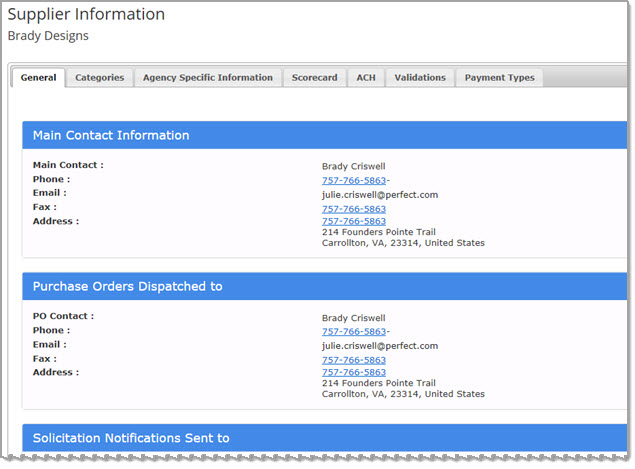
Scroll to the bottom of the Supplier Information window and click Close to return to the Select Vendors page.
When you have finished selecting your vendors for the new solicitation round, click Submit.
Enter Reason for New Solicitation Round
After selecting Submit on the Select Vendors page, a new window will display:
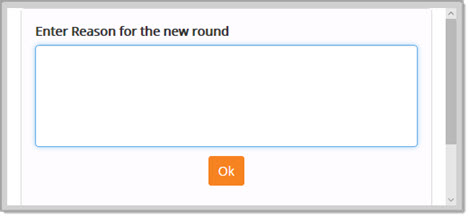
Enter your reason for creating the new solicitation round. This step is required.
See example image below:
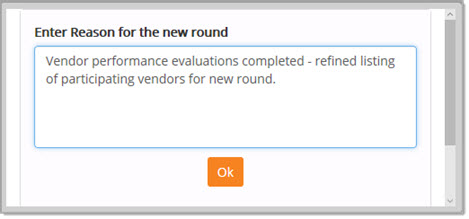
When finished, click OK to advance to the next step.
If you click OK without first entering in a reason, the following advisory message will display:
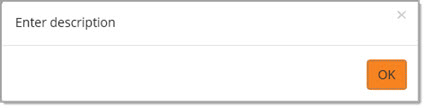
Click OK to acknowledge and proceed with entering a reason for the new solicitation round.
When finished, click OK to advance to the next step.
Edit Solicitation Round
The application will open to the Summary step in the Edit Solicitation View.
If you exit out of the application or close the solicitation, you can find the new solicitation round located in the Current Solicitations listing.
Each page and the allowed edits are discussed in their own topic.
Click a link below to jump to that particular topic.
Submit Solicitation Round
After all edits have been made, be sure to hit Save to commit any changes you made on that page.
Click Return to return to Summary step.
Click Submit.
If your organization utilizes pre-issue workflow, then the appropriate workflow will be launched and the solicitation will need to be approved before it becomes Active upon the solicitation round's Starting Date and Time.
Limited Visibility of New Round Information
Users are unable to see if a New Round has been created for a solicitation outside of their buying organization.
On the Public Bid Board, impacted solicitations with a status of New Round Created or New Round Created / ADDENDUM will display as Under Evaluation or Under Evaluation / ADDENDUM , respectively.
Learn more about managing your solicitation rounds.