Edit Contacts
In this Topic
Select the Edit Contacts option from the menu tree located in the left frame of the page.
The Contacts Information page is displayed in the right frame of the screen.
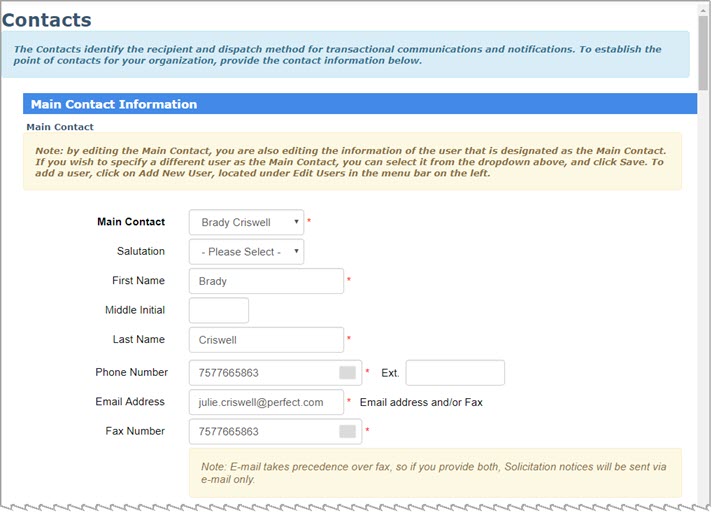
NOTE: By editing the Main
Contact, you are also editing the information of the user that
is designated as the Main Contact.
If you wish to specify a different user as the Main
Contact, you may select it from the Main
Contact drop-down menu and click Save.
To add a user, click the Add New User link located under Edit Users in the menu bar on the
left.
Enter or edit your organization’s contact information in five separate sections:
Main Contact Information
Purchase Order Contact Information - This contact will receive notification that a purchase order has been submitted to your vendor organization.
Solicitation Contact Information - This contact will receive notification when your vendor organization is invited to participate in a solicitation or if your vendor organization is awarded to your organization.
Contract Contact Information - This contact will receive notification when a contract has been dispatched to your vendor organization.
Remittance Contact Information - This contact will be the person whom the buying organization contacts regarding invoice payments. If CHECK is used as the payment routing selection, the contact and address identified in this section, will be the designated recipient of the check payment.
Required information is noted with a red (*) asterisk.
Geocoding is the process of converting addresses
like ‘1600
Pennsylvania Ave. Washington, DC’ into geographic coordinates like
latitude 38.898748
and longitude 77.037684. These coordinates serve as markers
or positions on map. Reverse geocoding is the process
of converting geographic coordinates into a human-readable address and
allows address validation to occur.
WebProcure validates addresses
when the profile is saved.
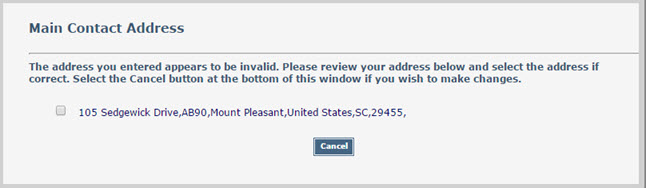
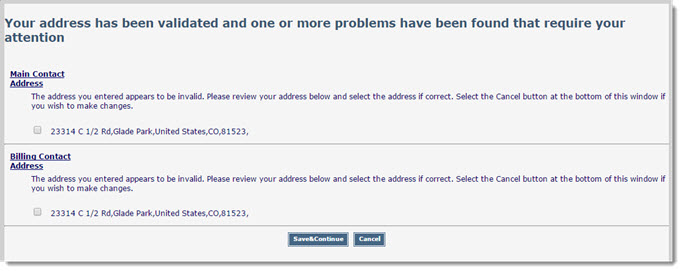
If one or more matches to the address is found, those matches will be displayed in a new modal window. You may then select the correct address that will be saved to WebProcure.
If the address does not have a match, a message will appear in a new modal window. The message states that the address appears to be invalid and recommends that you verify the address for accuracy. You may check the box next to the address acknowledging that it is indeed, correct, or you may choose to select Cancel and edit the address as needed.
See sample images below:
Copy Main Contact / Copy Main Address
If the Purchase Order, Solicitation, Remittance or Contract contact is the same as the Main Contact simply click Copy Main Contact and Copy Main Address in each section respectively.
This transfers the Main Contact and Main Address information into that section.
Click Save to maintain the changes.
Click Reset to return the changes to the previously saved information.
