Contract Custom Notification Templates
The Contract Custom Notification Templates allows you to design notifications that you may pull into a contract.
Message content may be re-used across multiple contracts and can serve as automated notifications or alerts.
Select Manage Notification Library link from the Configure Documents menu options.
Click the Contract Custom Notification Templates tab.
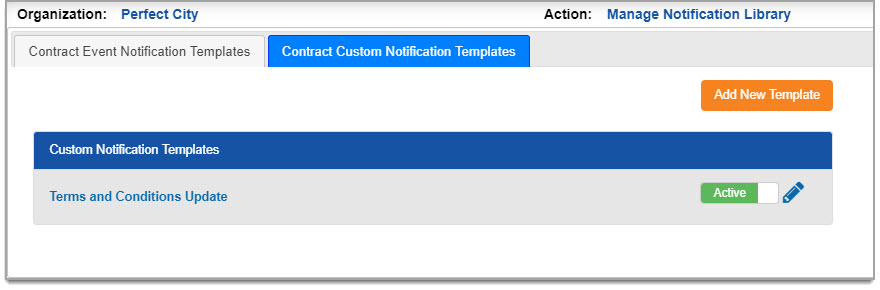
Key Points about Creating Contract Notification Templates
-
Notification templates may be built at the parent level organization and inherited by child (sub) organizations.
-
Child (sub) organizations can override the notification templates inherited from the parent level organization and create their own organization-specific templates.
-
If a template is modified or updated and that template is already associated with a contract, the contract will not be updated to reflect the changed template.
Add New Template
To add a new contract template notification, select the Add New Template button.
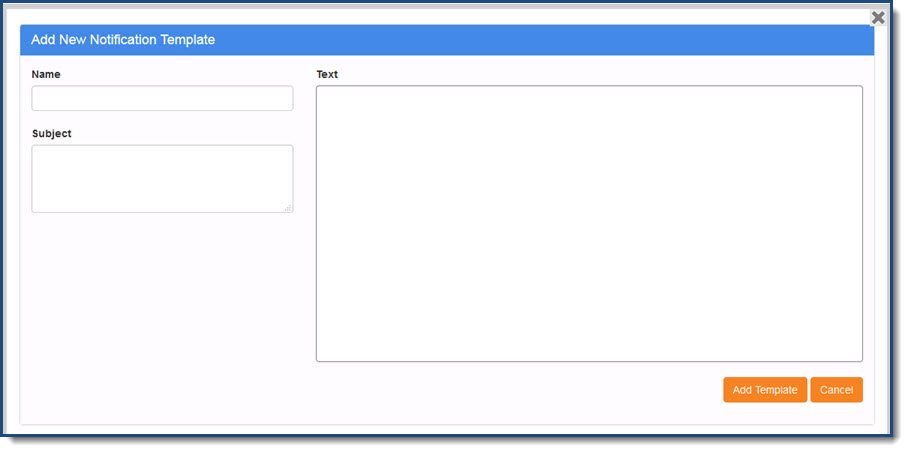
Create the new template by completing this page. Designate a name for the template that will also be listed on the template selection page. Enter a Subject that will appear in the subject line of the automated email notification when it is sent. Enter the content of the notification in the Text box. When finished, click Add Template. The newly created template will display on the Contract Notifications Templates listing page.
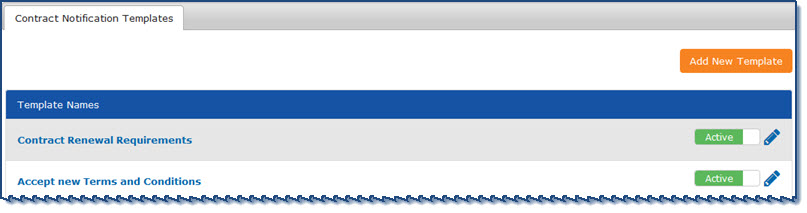
By default, the newly created template will be listed as Active.
Active / Disable
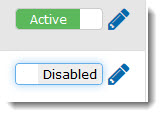
If necessary, the template may be marked as Disabled simply by clicking on the green box. This action is a toggle and if clicked again, it will revert to the Active status.
Edit
If necessary, an existing template may be viewed and/or edited by selecting the Edit  icon.
icon.
The Edit Notification Template page opens:
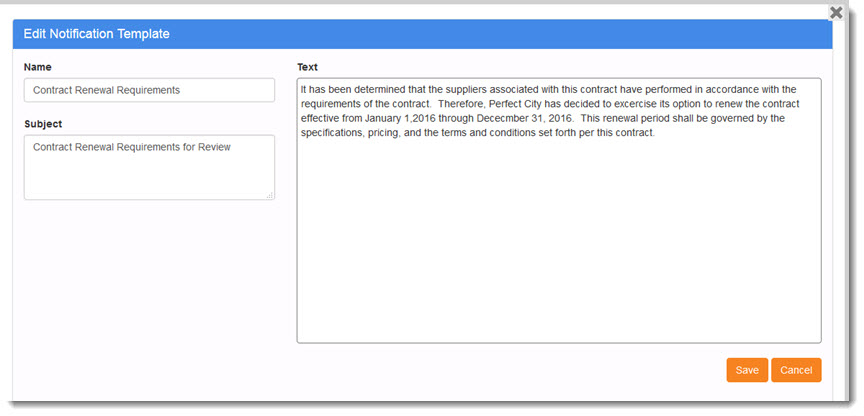
Make changes as needed, click Save.
Once the templates are created and saved as Active, contract creators will be able to include one or more notifications in their contracts.
See the topic on Custom Notifications for more information on using these custom templates.
Event Notifications for Sub/Child Organizations
By default, child or sub organizations will inherit custom notifications from the parent organization, however, they may be overwritten as needed.
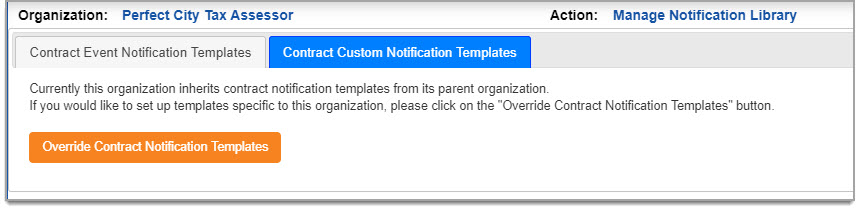
Click the Override Contract Notification Templates button to create custom notification templates for the sub-organization.
The page will refresh to display the Add New Template button.
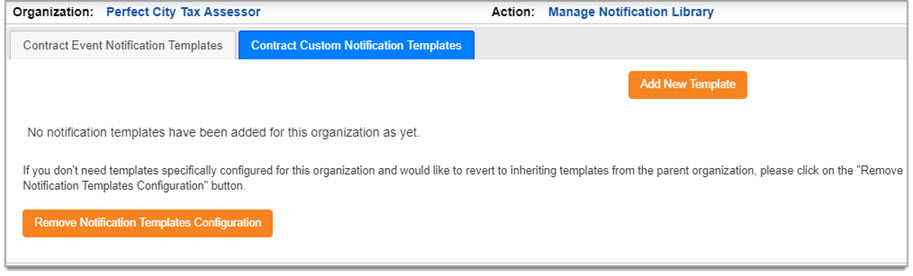
Follow the steps listed above to create custom notifications.
If you do not need these templates configured specifically for this organization, you may easily revert to inheriting the templates from the parent organization.
Click Remove Notification Templates Configuration.