Custom Notifications
In the Custom Notifications section, you may utilize existing custom notification templates that have been created by an Administrator of WebProcure.
An added notification from the library may be edited and can serve as automated notifications or alerts.
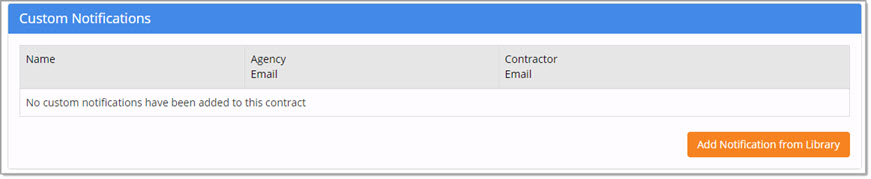
Add Notification from Library
Click Add Notification from Library to select and customize a notification template that has been built in the Admin module. Only Active templates will be available for selection by the contract creator.
Select a Notification Template
The custom notification utility opens to the Select a Notification Template step.
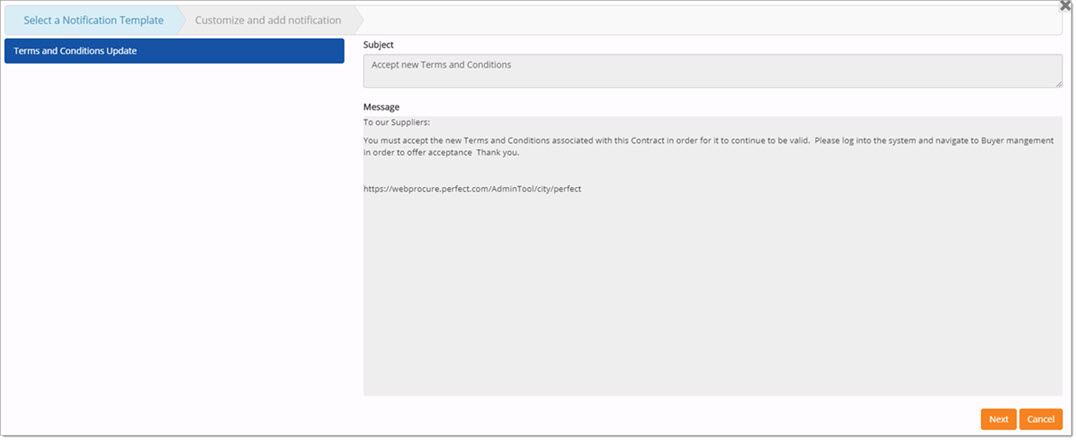
The listing on the left displays existing templates that are associated with your organization and may be selected for inclusion in this contract. When you click a template, the right side of the window will refresh to display the contents of that particular notification template.
Choose a template to customize and click Next.
Customize and Add Notification
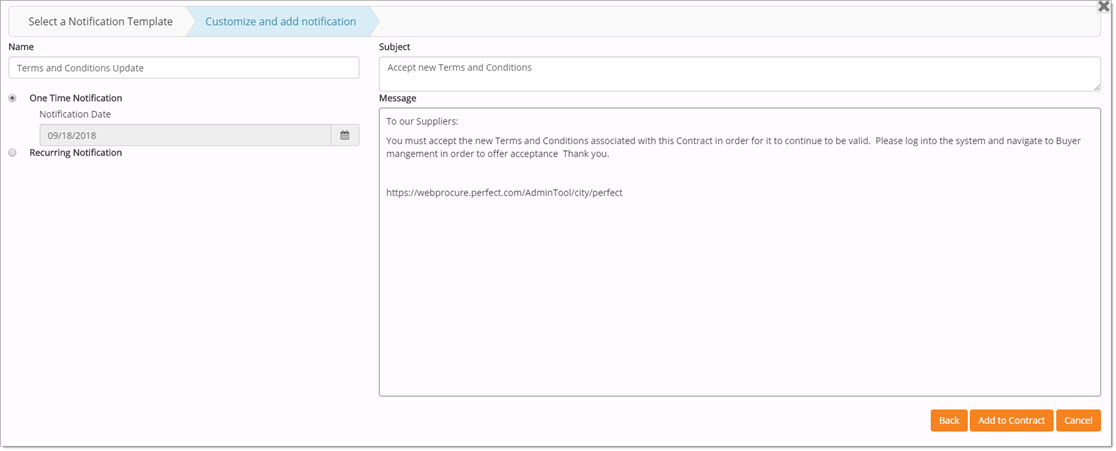
Customizing the template allows users to change the following fields as needed to be applicable to this particular contract:
-
Name - This is the name of the notification template that you selected in step one.
-
Subject - The text in this line may be edited as needed; it will be what is displayed in the email notification/alert.
-
Message - The text in this box may be edited as needed; it will be what is displayed in the message portion of the email notification/alert.
In addition, the notification may be configured to be a one-time notification sent out on a particular date or it may be set to recurring and sent out repeatedly for an established period of time.
One-Time Notification
By default, it is set as a one-time notification.
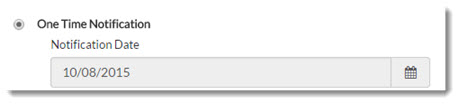
Use the calendar to select the date that the notification should be sent.
Recurring Notification
To have the notification sent on a recurring basis for a specified number of days, weeks, months, or years and for a specified duration, select Recurring Notification. The page will refresh to display additional fields.
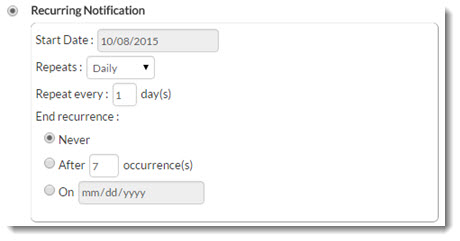
By default, the Start Date will be today's date.
By default, the Repeats selection will be set as Daily.
Options include:
Daily
If the report is run daily, you need to determine how often the notice will be sent by entering a numeric value in the Repeat every __ days field.
Use the radio buttons to determine when the notifications will cease to be sent. For Daily reports, the options include:
-
Never - Theoretically the notification will be sent...forever:)
-
After __ occurrences - Enter a numeric in this field to represent the number of times the notification will be sent before it ceases to be sent.
-
On - Enter a date in mm/dd/yyyy format to specify the exact date on which the notifications should cease being sent.
After setting the recurrence parameters, there are three options:
-
BackBackBack - Select Back to return to the Select Notification Template page, however, you will lose changes that you have made to the recurrence settings. A confirmation message will display:
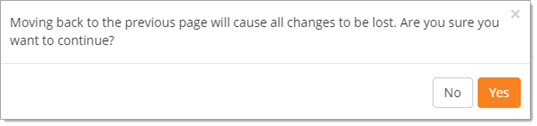
Click Yes to acknowledge that your recurrence settings will be lost and return to the Select Notification Template page. Click No to stay on the Customization page without losing your changes.
Weekly
If the report is run weekly, you need to determine how often the notice will be sent by entering a numeric value in the Repeat every __ week(s) field.
You may also designate which days the notification will be sent. Check the box next to one or more days that you wish the notification to go out, for example, Monday and Friday.
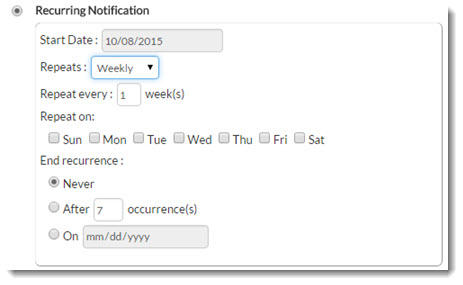
Use the radio buttons to determine when the notifications will cease to be sent. For Weekly reports, the options include:
-
Never - Theoretically the notification will be sent...forever:)
-
After __ occurrences - Enter a numeric in this field to represent the number of times the notification will be sent before it ceases to be sent.
-
On - Enter a date in mm/dd/yyyy format to specify the exact date on which the notifications should cease being sent.
After setting the recurrence parameters, there are three options:
-
BackBackBack - Select Back to return to the Select Notification Template page, however, you will lose changes that you have made to the recurrence settings. A confirmation message will display:
Click Yes to acknowledge that your recurrence settings will be lost and return to the Select Notification Template page. Click No to stay on the Customization page without losing your changes.
Monthly
If the report is run monthly, you need to determine how often the notice will be sent by entering a numeric value in the Repeat every __ month(s) field.
You may also designate which day of the month the notification will be sent.
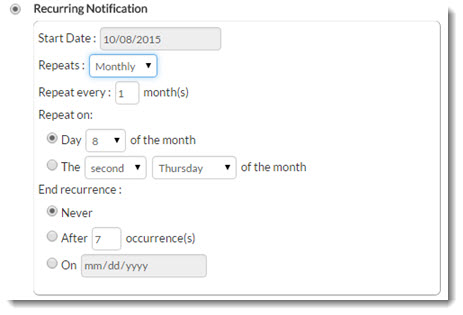
To choose a specific date in the month, use the drop-down menu located in the Day __ of the month row to select the specific date.
To choose to send the notification based on day rather than date, use the two drop-down menus located in The __ ___ of the month row. Options include:
-
first
-
second
-
third
-
fourth
-
last
The second drop-down menu in this row lets you choose a day: Monday through Friday.
For example, if you would like the notification to be sent the third Thursday of every month, then select third from the first drop-down menu and select Thursday from the second drop-down menu.
Use the radio buttons to determine when the notifications will cease to be sent. For Monthly reports, the options include:
-
Never - Theoretically the notification will be sent...forever:)
-
After __ occurrences - Enter a numeric in this field to represent the number of times the notification will be sent before it ceases to be sent.
-
On - Enter a date in mm/dd/yyyy format to specify the exact date on which the notifications should cease being sent.
After setting the recurrence parameters, there are three options:
-
BackBackBack - Select Back to return to the Select Notification Template page, however, you will lose changes that you have made to the recurrence settings. A confirmation message will display:
Click Yes to acknowledge that your recurrence settings will be lost and return to the Select Notification Template page. Click No to stay on the Customization page without losing your changes.
Yearly
If the report is run yearly, you need to determine how often the notice will be sent by entering a numeric value in the Repeat every __ year(s) field.
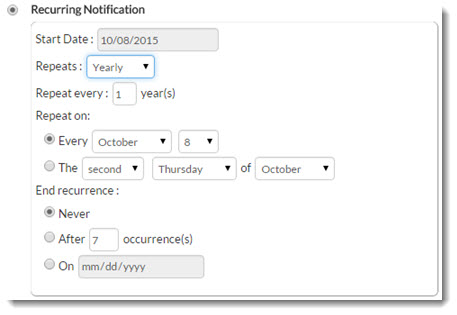
Determine when during the year, the notification will be sent.
To choose a specific date, use the drop-down menus to select the Month and Date.
To choose to send the notification based on day rather than date, use the three drop-down menus to choose which day in which month.
Options include:
-
first
-
second
-
third
-
fourth
-
last
The second drop-down menu in this row lets you choose a day: Monday through Friday.
The third drop-down menu in this row lets you choose the month: January through December.
After setting the recurrence parameters, there are three options: (click a link below to learn more)
-
BackBackBack - Select Back to return to the Select Notification Template page, however, you will lose changes that you have made to the recurrence settings. A confirmation message will display:
Click Yes to acknowledge that your recurrence settings will be lost and return to the Select Notification Template page. Click No to stay on the Customization page without losing your changes.
Add to Contract
Select Add to Contract to associate this notification and its run schedule with the contract.
The Custom Notifications section of the contract will display the added notification.

In the Name column, the template name is identified along with the starting date that the notification will begin being sent.
The Repeat information will display if recurrence parameters were established. In the above sample image, this notification will repeat every week on Friday and end after it is sent out twice.
There are two icons visible to the right of the notification name, they are for editing and deleting the notification.

Edit Custom Notification
Select the Edit  icon to open the Edit Notification page and make edits to the Subject, Message, and/or
delivery settings.
icon to open the Edit Notification page and make edits to the Subject, Message, and/or
delivery settings.
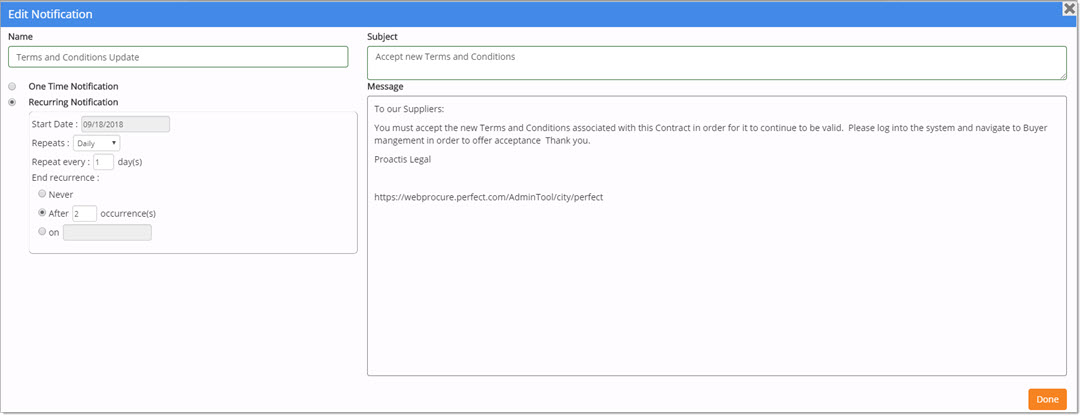
When edits are complete, click Done.
To discard edits, simply close the window using the X located in the upper right corner.
Delete Notification
To remove a custom notification from your contract, click the Delete  icon.
icon.
A confirmation message will display:

To proceed with removing the notification from the contract, click Yes.
Click No to end the deletion process; the notification will remain attached to the contract.
Agency Email / Contractor Email
The Agency Email is the email address or addresses that will display in the FROM field of the email notification.
The Contractor Email is the email address or addresses that the notification will be sent TO.
Edit these fields as needed.
Multiple email addresses may be entered; be sure to separate each valid email address with a semi-colon (;).
Click a link below to learn more about other areas of the Notification page: