Create New User
You may create a new user by copying or by entering the information from scratch.
See Copy User topic to learn more about creating a user by copying.
Continue in this topic to create a user from scratch.
Select the Create New User option from the Users menu under Administration in order add new users into the WebProcure application.
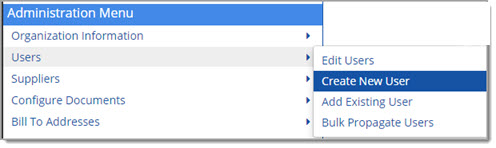
The Create New User page opens:
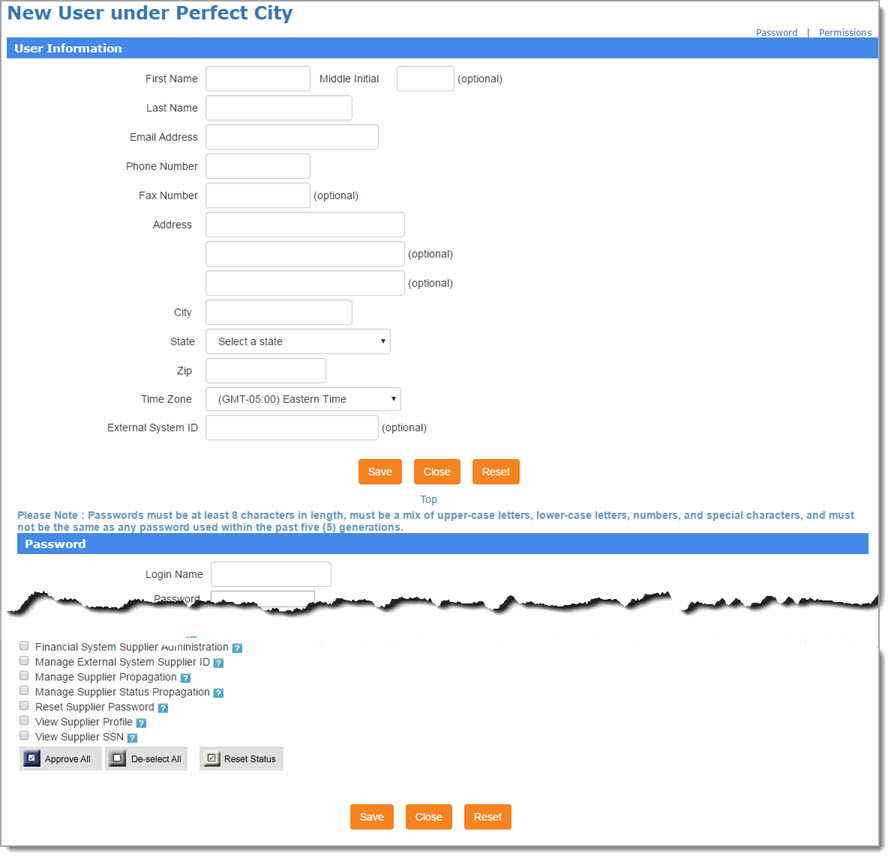
This page is broken into three sections. Each one is discussed below.
User Information
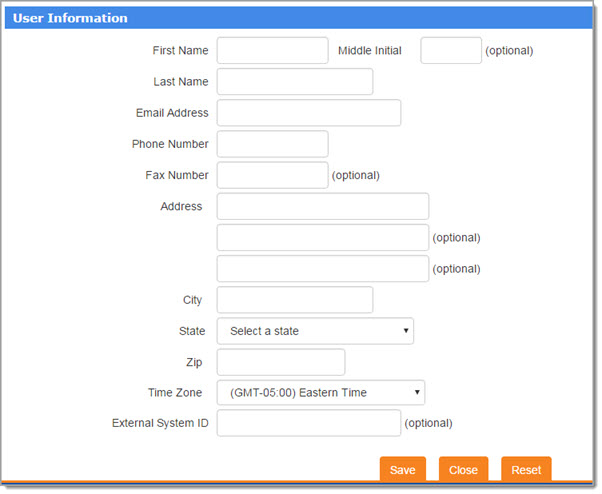
The required information fields are noted with an asterisk (*).
Enter in all the information for the user.
Be aware that the user will receive notices of solicitations at the email address or fax number provided. An email address is required if the Fax Number is the same as the Phone Number. The email field is also required for international addresses.
Password
Create the Login Name and Password for the new user.

We recommend using the person's first initial and last name (for example: jsmith), for the Login Name.
When the user logs on to the system the first time, they will use the password created here.
Upon a successful login, the user will be prompted to create a new password that is meaningful to them.
The password field is case sensitive; therefore, if capitalization is used when creating the new password, the same capitalization must be repeated during the log on process.
NOTE: Passwords must be at least 8 characters in length, must be a mix of upper-case letters, lower-case letters, numbers, and special characters, and must not be the same as any password used within the past five (5) generations.
Status
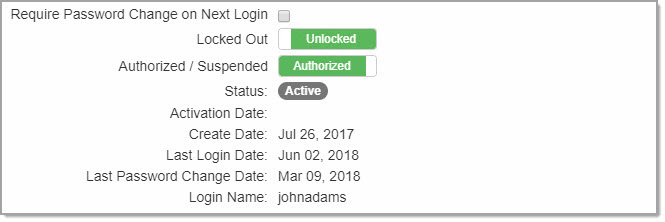
Located near the bottom of the User Information section are fields and information relating to the user's access and status.
-
Require Password Change on Next Login - Check this box to force the user to change their password the next time they log into the application.
-
Locked Out - This toggle switch identifies whether the user is currently locked out of the system, Unlocked or Locked Out.
If the user has been locked out, you may toggle the setting to allow the user to login again. -
Authorized / Suspended - This toggle switch controls whether the user is authorized to use the system or if the user has been suspended by an Administrator.
-
Status - The user's current status displays as a badge. The user will be shown as Inactive if it has been 180+ days since their last log in or activation date.
If the user is Inactive, a new Activate button will be visible. You may select this button to set the user as Active and this action will populate the Activation Date field.
Additional attributes are read-only:
-
Create Date - Date the user account was created.
-
Last Login Date - Date the user last logged into the application.
-
Last Password Change Date - Date the user last changed their password.
Change Password
To reset a user's password, click Change Password.
The following overlay window will open:
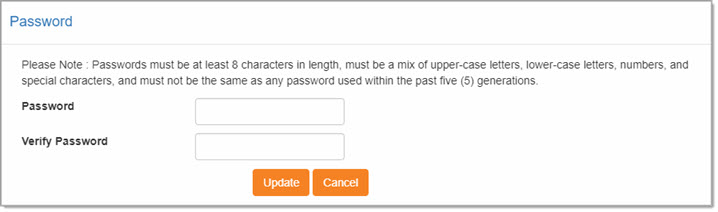
Enter in the new password twice; once in the Password field and again in the Verify Password field.
Click Update to save new password.
Cancel closes the Password window without changing the user's current password.
Permissions
Check the appropriate permissions for the user.
See the complete list of Permissions.
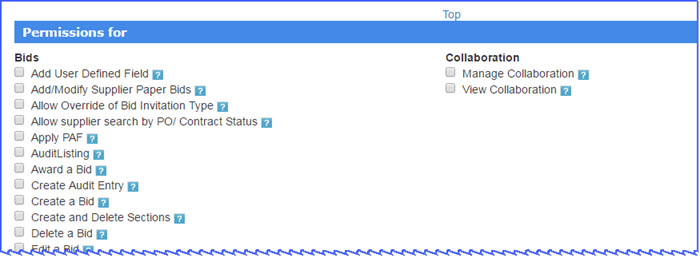
Approve All / De-Select All / Reset Status

-
Select All - Check this box to mark all displayed permissions.
Once saved, all permissions will be assigned. -
De-select All - Click to remove all marked permissions.
-
Reset Status - Discards any changes to the permissions and returns selection to its original state before changes were made.
Saving
When the user information, password, and permissions are complete, click Save to enter user in the system.
Reset clears all entered information.
Close ends the new user creation process.
Status
Located near the bottom of the User Information section are fields and information relating to the user's access and status.
-
Require Password Change on Next Login - Check this box to force the user to change their password the next time they log into the application.
-
Locked Out - This toggle switch identifies whether the user is currently locked out of the system, Yes or No.
If the user has been locked out, you may toggle the setting to allow the user to login again. -
Authorized / Suspended - This toggle switch controls whether the user is authorized to use the system or if the user has been suspended by an Administrator.
-
User Status - The user's current status displays as a badge. The user will be shown as Inactive if it has been 180+ days since their last log in or activation date.
If the user is Inactive, a new Activate button will be visible. You may select this button to set the user as Active and this action will populate the Activation Date field.
Additional attributes are read-only:
-
Create Date
-
Last Login Date
-
Last Password Change Date
User Workflow and Spending Limits
The next steps are to set up the user's spending limits, approver's and more.
Choose a link below to jump to that particular topic:
NOTE: Only tabs implemented by your organization will be visible.