Solicitations With Questionnaire Responses
The image below represents a solicitation with scored questions.
If your organization does not utilize the Questionnaire functionality or if the solicitation does not contain questions, the weighted and scored questions will not be visible.
The supplier responses are shown in columns for a side-by-side comparison.
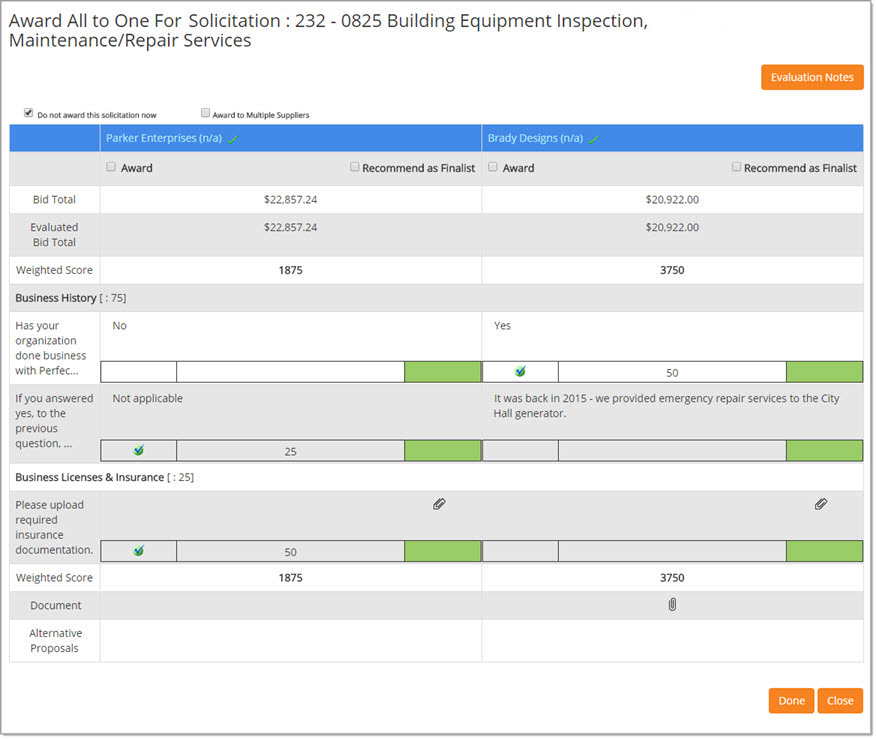
The example image above represents an informal solicitation but the page layout and actions are the same when working with a formal solicitation.
Allow Award All to One - Partial Response
If your organization has enabled the Allow Award All to One to Partial Response Vendors in the Solicitation Management section of the Edit General Org info page, then there will be a toggle switch visible at the top of the page. By default, the switch is set to Award Partial Bids.
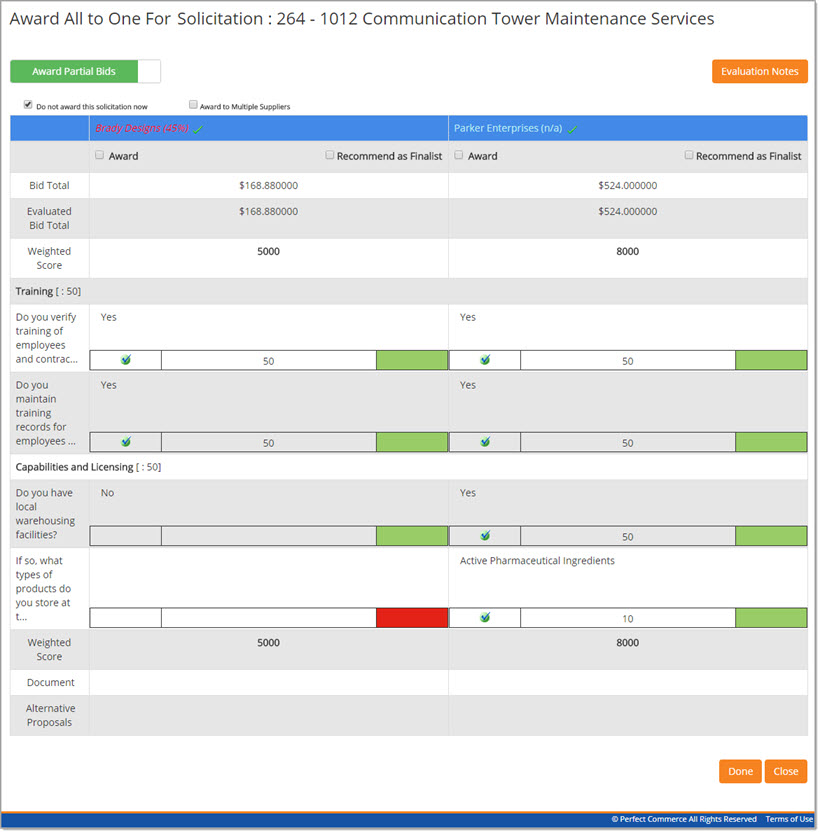
The example image above represents an informal solicitation but the page layout and actions are the same when working with a formal solicitation.
Award Partial Bids
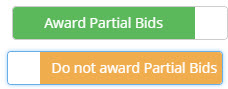
To switch from Allow Partial Bids to Do not award Partial Bids, just click the toggle switch. Click a second time to revert to default setting.
-
Allow Partial Bids - Allows users to award to vendors who only partially responded to the solicitation.
-
Do not award Partial Bids - Prevents any vendor, who partially responded, from being selected as the awarded vendor.
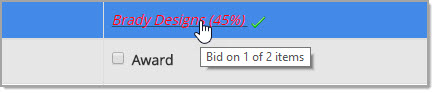
If vendors only provide a partial response, they will be shown in red. Hover over the vendor name to view the number of items bid versus total number of items.
If you choose to award to a vendor who has only partially responded, you will need to affirm your intention by selecting Continue on the following confirmation message:
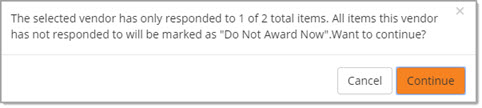
Selecting Cancel closes this message and returns you to the Award All to One page, clearing your previous award selection.
Evaluation Notes
Select the Evaluation Notes button to enter a date/time stamped note relating to the evaluation of the supplier responses.
See Evaluation Notes for more information.
Do Not Award This Solicitation Now
To de-select the Do not award this solicitation now check box, choose a Supplier.
Once a supplier is selected, the Do not award this solicitation now check box will clear automatically.
To de-select an awarded supplier, check the box next to Do not award this solicitation now.
Award to Multiple Suppliers
If the listing of suppliers needs to be reduced to several possibilities or if the user wants to recommend several suppliers while in the evaluation phase, they may check the box next to Award to Multiple Suppliers. In essence, this duplicates the awarding of all items to the selected suppliers.
This process may be used in conjunction with Pre-Award Workflow whereby the solicitation needs to be approved prior to being awarded.
To utilize this feature, first check the Award to Multiple Suppliers check box, and then select multiple Suppliers and their associated Bid Total.
To de-select the Award to Multiple Suppliers feature, simply check the box a second time to clear it.
Award Solicitation With Questionnaire Responses
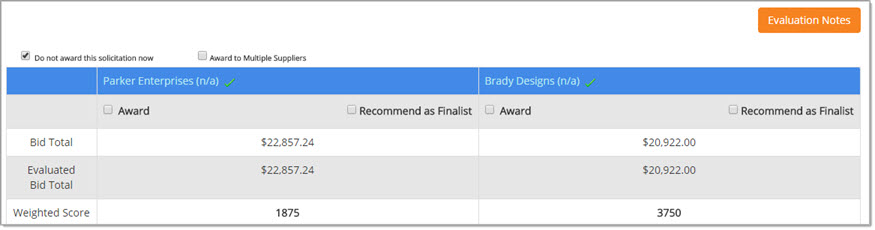
The top portion of the page shows the actual bid amounts submitted by each supplier.
Supplier Status
Each supplier name is an active hyper link. Click a name to view Supplier Information.

A check mark or question mark next to a Supplier name, indicate the status of that supplier.
-
Pending
 - Indicates that the supplier's status is Pending.
NOTE: Organizations may enable the ability to include suppliers with a status of Pending in their solicitations and invitation lists. This enablement requires the assistance of your Proactis Technical Account Manager to activate. It is important to note that you will not be allowed to award to a supplier with a Pending status. Those suppliers will first need to be made Active in order to award a solicitation/item/group to them.
-
Approved
 - Indicates that the supplier's status is
Approved.
- Indicates that the supplier's status is
Approved.
Other possible icons include:
-
Declined - Red 'X'
-
Intentional No Bid
 - Indicates that
the supplier intentionally chose not to bid on this item.
- Indicates that
the supplier intentionally chose not to bid on this item.
Select Supplier / Bid (Award)
Click the hyper linked Supplier Name to view Supplier Information.
Below the Supplier Name row, there is an Award row. To select a supplier and their corresponding Bid Total, simply check the box.
As boxes are checked, the application will auto save and acknowledge once those changes have been saved.

Recommend as Finalist
If this check box is visible, your company has enabled the ability to create multiple solicitation rounds.
Select to recommend a responding vendor as a Finalist. Those vendors selected as finalists will display in green.
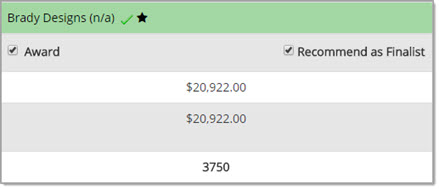
Visit the Multi-Round Solicitations topic for more information.
Weighted Score
Each question response should be reviewed and scored.
For detailed information on how to score the various question types, visit the Score Questions topic.
Documents
If there is a supplier attachment, an Attachment icon will be
displayed in the Documents row.
icon will be
displayed in the Documents row.
Select the icon to open the Download Document window.
See Documents topic for more information.
Alternative Proposals
The Alternative Proposals row will display and may be populated with an Evaluate link if, during solicitation creation, substitutes and alternatives were set to allowed. Suppliers will identify which of the approved product options that they are providing in lieu of the originally requested item.
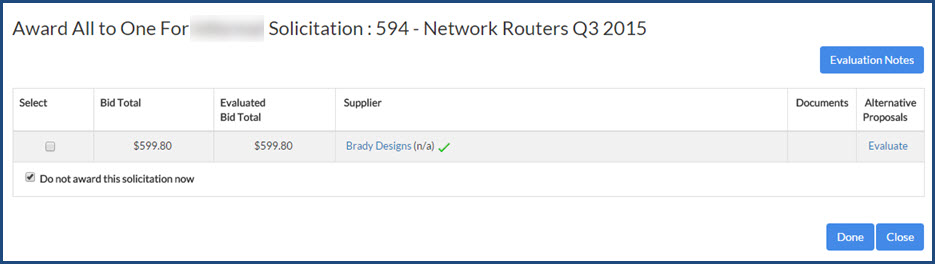
Click Evaluate to open the Select Quote window.
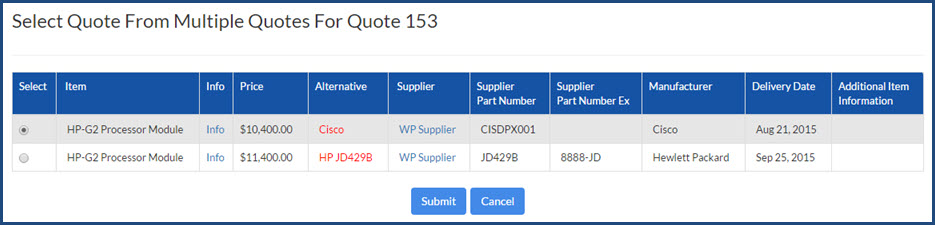
The alternative field represents the items that the supplier can provide in lieu of the original item on the solicitation. If only one alternative has been offered for an item, the Select radio button will already be marked. If multiple alternatives have been offered, mark the Select button next to the chosen alternative.
Click the Info link on an item to view the originally requested Item Specification Detail.

Click the hyper linked Supplier Name to view Supplier Information.
If the supplier added comments to their response, a link to view Additional Item Information will be available.
View Sample Image to view a sample image.

Once alternative selection is made, click Submit.
Total Award Summary
If the solicitation has had supplier responses, the very bottom of the page will display the Total Award Summary.
This may be collapsed and expanded as needed.
See Total Award Summary for more information.
Saving
Done to save selection and Close discards selection without saving.
If Done is selected, and your organization has pre-award workflow built, the following will display:
What do you want to do with the workflow?
If your organization utilizes pre-award workflow, then a modal window will open:

To submit the solicitation into the pre-award workflow process, click Submit to Workflow.
Selecting Submit to Workflow forwards the solicitation into the pre-award approval process. The following confirmation message displays:
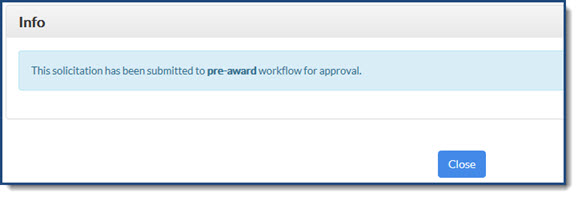
Click Close to acknowledge the statement.
Selecting Cancel on the What do you want to do with the workflow modal window returns you to the listing page without submitting the solicitation into the pre-award approval process. The solicitation will remain in the Under Evaluation status until and if, you select the Submit for Pre-Approval option.