View Vendors
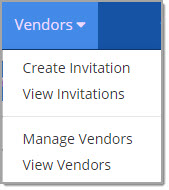
The View Vendors option from the Vendors menu provides access to view vendor profiles
Select View Vendors from the Vendors menu.

The View Vendors opens to a search utility.
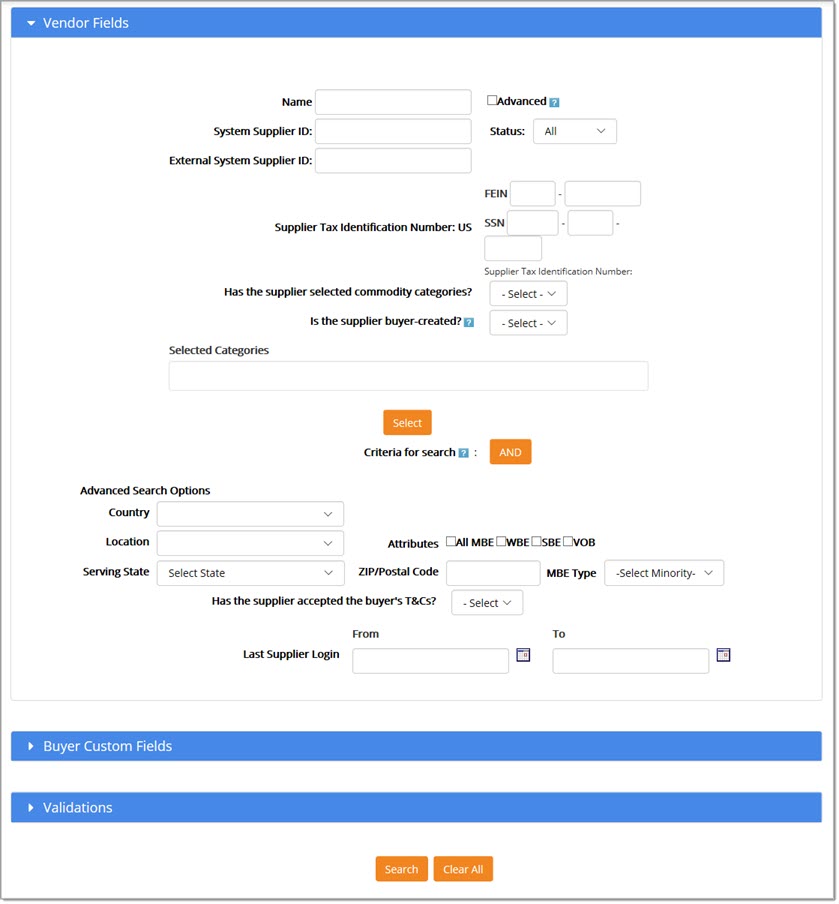
The Edit Suppliers page is organized into three sections:
-
Vendor Fields
-
Buyer Custom Fields
-
Validations
By default, the Vendor Fields section is automatically expanded.
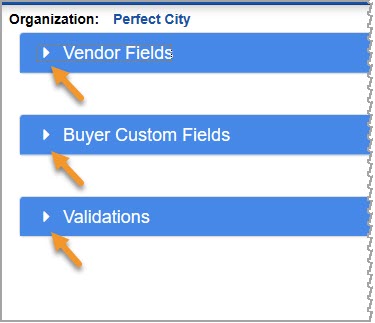
To expand the other sections, simply click the right-facing arrow in each of the blue heading bars.
Search for Supplier
Vendor Fields
The following fields are available for search in the Vendor Fields section.
-
Name - Enter a full or partial supplier name in the Name field.
An asterisk (*) may be used as a wildcard but is not required, for example: Me* may be entered or simply Me to find all suppliers that begin with the letters Me.
Entering an asterisk (*) by itself will return a complete listing of all suppliers. -
Advanced - Check this box to assign weighting to search terms. See the Advanced Search topic to learn more.
-
System Supplier ID - Each supplier that is created is assigned a system-generated identifier.
If known, enter a full or partial supplier ID. An asterisk (*) may be used as a wildcard. -
External System Supplier ID - During the creation of a new supplier, an external Supplier ID may be assigned by your organization.
It may be used as a cross-reference for other supplier tracking tools used by you.
Enter a full or partial external Supplier ID. An asterisk (*) may be used as a wildcard. -
Supplier Tax Identification Number:
-
-
FEIN - Enter a complete Federal Employer Identification Number.
This number is used to classify businesses for tax-related purposes. -
SSN - If a owner-operated or self-employed operation, a FEIN may not exist, a Social Security Number is used instead.
Enter a complete Social Security Number.
-
-
Has the Supplier selected commodity categories? - Use the drop-down menu to choose Yes or No to indicate whether or not the supplier being searched for has entered their associated commodity categories.
-
Is the Supplier buyer-created? - Use the drop-down menu to choose Yes or No to indicate whether or not the supplier being searched for was created by the your organization.
If No, it indicates that the supplier self-registered. -
Search by Payment Status - This search field will only be visible to those organizations that utilize custom supplier registration with a configuration into a payment tool such as PayPal™.
They will be able to search for suppliers with a status of Paid or Not Paid. -
Search by Payment Expiration Date - Similar to searching by Payment Status, this field will only be visible to those organizations that utilize custom supplier registration with a configuration into a payment tool such as PayPal™. Use the calendar to make a date selection.
-
Search by Renewal Type - Similar to searching by Payment Status, this field will only be visible to those organizations that utilize custom supplier registration with a configuration into a payment tool such as PayPal™. Choose between Auto and Manual to locate suppliers that have a manual or automatic renewal.
-
Selected Categories - Search and select one or more commodity categories that the supplier is associated with.
See Search and select topic for more information. -
AND / OR - By default AND is the search parameter. It may be clicked to change it to OR.
-
-
AND - Search for suppliers with the name of Jason AND a Supplier ID of 13546.
-
OR - Search for suppliers with the name of Jason OR Supplier ID of 13546.
-
-
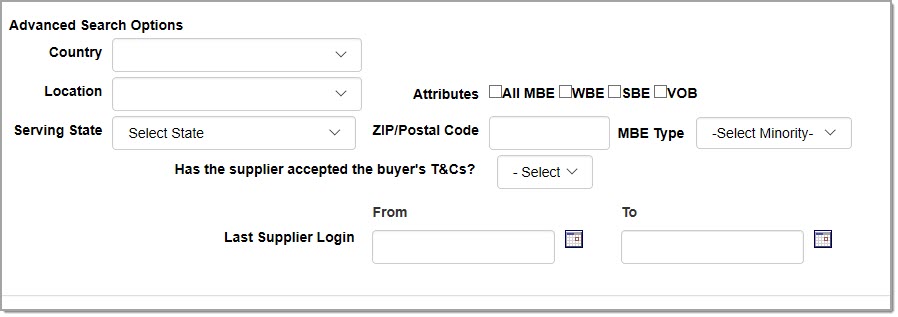
The Advanced Search Options section includes:
-
Country - Use the drop-down menu to choose Country of the supplier.
-
Location - Use the drop-down menu to choose State or Province of the supplier. Options in this menu will depend on the selection made in the Country drop-down.
-
Serving State - Use the drop-down menu to choose the state that the supplier serves.
-
Zip/Postal Code - Enter a valid mailing zip code or postal code for the supplier. An asterisk (*) may be used as a wildcard.
-
Attributes - Check the diversity options that you wish to search on. Options include:
-
MBE - Minority Owned Business
-
WBE - Woman Owned Business
-
SB -Small Business
-
VOB - Veteran Owned Business
-
-
MBE Type - If you check the diversity option of MBE, you may use this drop-down menu to select which minority you wish to search on. Options include:
-
African American
-
Asian American
-
Hispanic
-
Native American
-
Pacific Islander
-
-
NOTE: Be aware that buying organizations have the option to show or hide demographic information when searching, viewing or editing vendor profile information.
-
Has the supplier accepted the buyer's T&Cs? - Use this drop-down menu to select Yes or No. A Yes selection means you are searching only for those suppliers who have accepted the buyer's Terms and Conditions. A No selection means you are searching only for those suppliers who have not accepted the buyer's Terms and Conditions.
-
Last Supplier Login - Use the calendar icons to select the From and To dates. This creates a specific date range and allows you to search for only those suppliers that have logged into the system during this particular time period.
-
(See also the topic relating to the Advanced check box.)
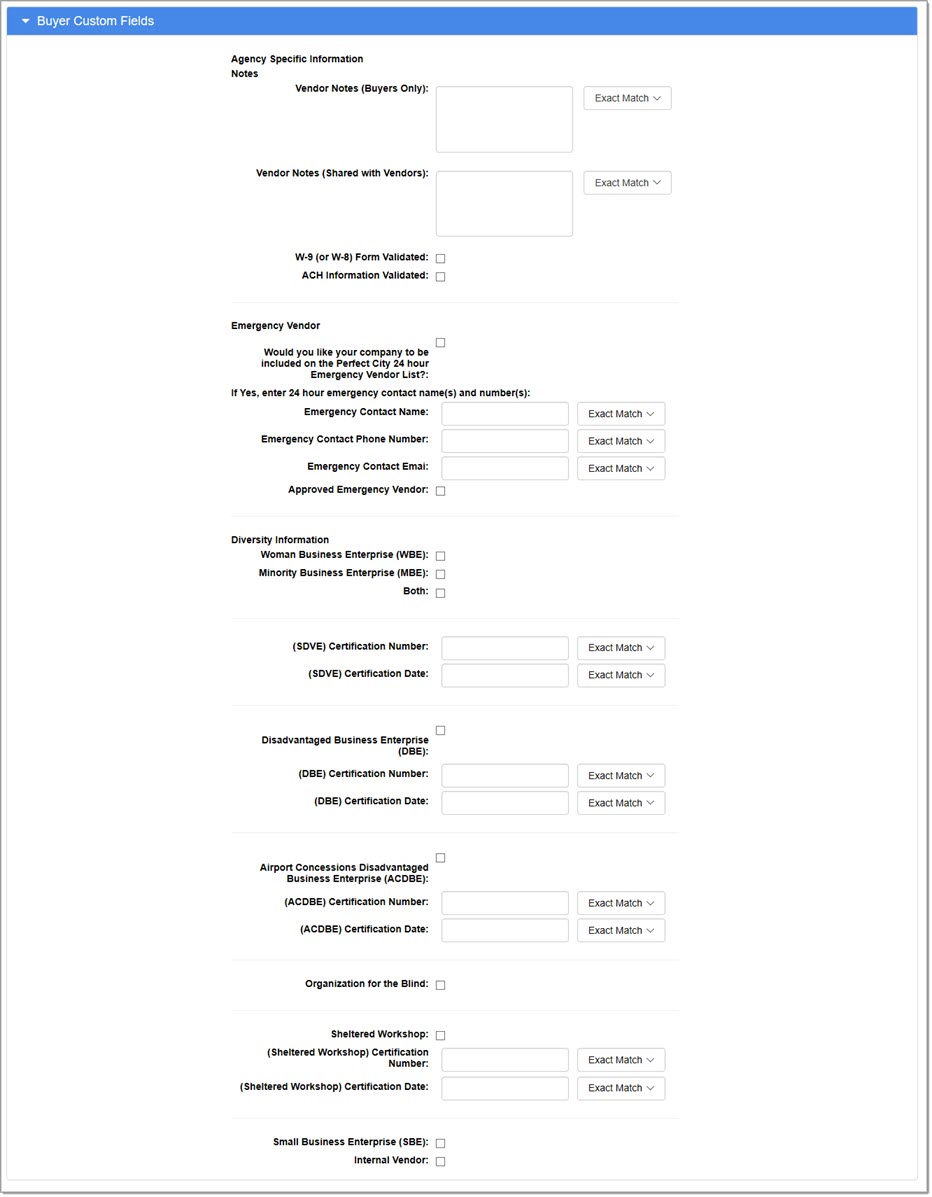
Buyer Custom FIelds
For those buying organizations that utilize Buyer Custom Fields, this section, once expanded, will display those fields that may be used to search for a specific supplier.
The following image is a sample only. Fields will vary per your organization.
Operators
When applicable, the Operators drop-down menu will be visible to choose the type of search to perform.
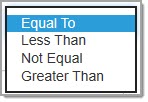
The available operators when searching for a date or numeric value will be: (Equal To is the default operator.)
-
Equal To
-
Less Than
-
Not Equal To
-
Greater Than
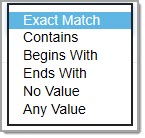
The available operators when searching for a text value will be: (Exactly Matches is the default operator.)
-
Exactly Matches
-
Contains
-
Begins With
-
Ends With
-
No Value
-
Any Value
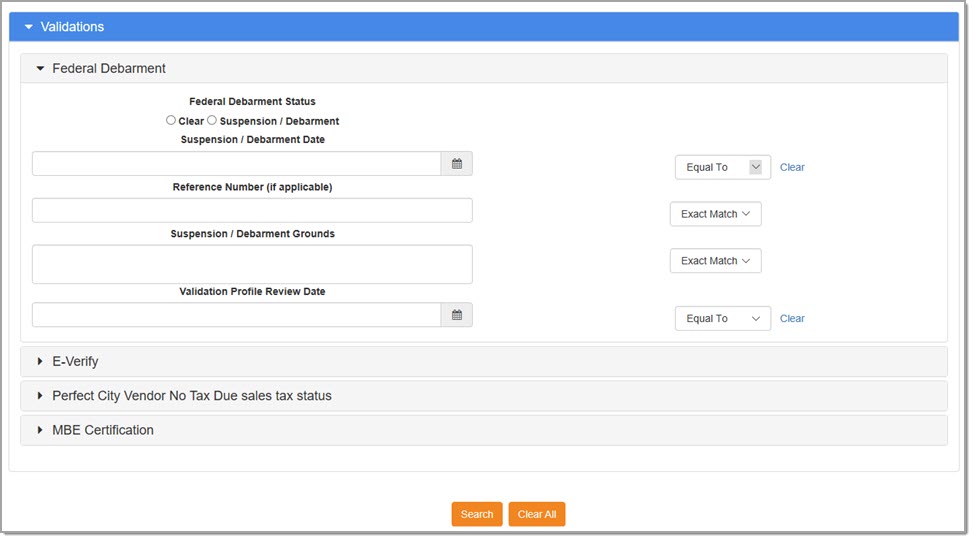
Validations
For those organizations that utilize external Vendor Validations, the Validations section, when expanded, will display the validation fields that may be used to search for a supplier. These validations will vary per organization.
The following image is a sample only. Fields will vary per your organization.
Click Search.
Clear All removes all entered search criteria and any selections made.
The page refreshes to display matching suppliers, if any. See the Search Results topic below.
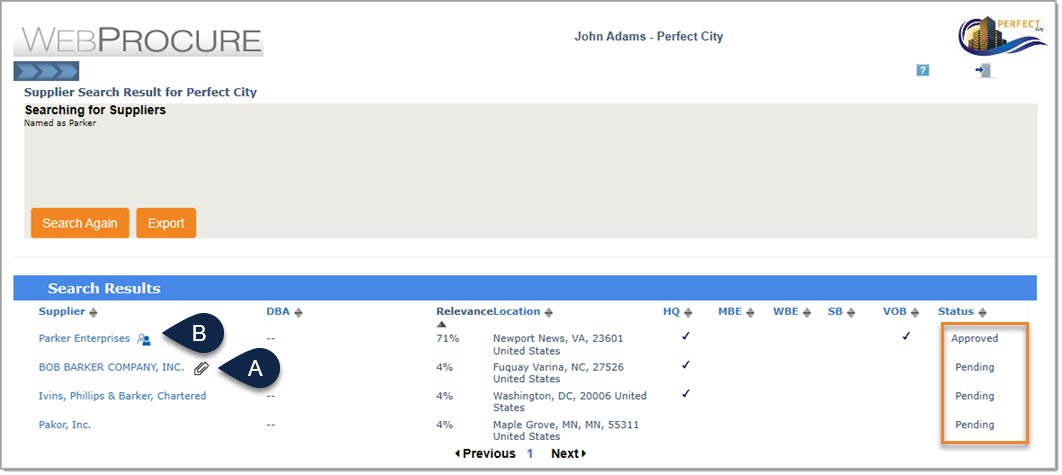
Suppliers matching the entered search terms will display on the Search Results page.
Search Again
To return to the previous search page, click Search Again.
Export
If desired, users may export the search results to a Microsoft™ Excel spreadsheet for further manipulation and sorting.
Organizations have used the export to create mailing labels and letters, etc.
Click Export.
The Choose Supplier Export Options modal window opens:
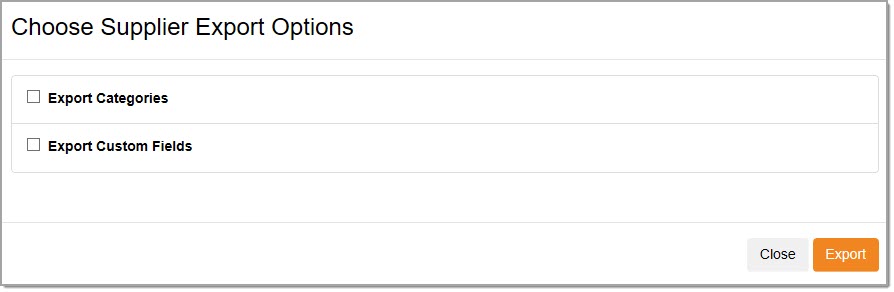
If you do not make any selections on this window and click Export, the resulting report will include two tabs:
- Exported Vendors - The same suppliers that appeared on the Search Results page will be listed with all their associated information including contact and status information, etc. View sample image.
- Search Criteria - The search criteria entered to obtain the listing of exported suppliers will be displayed.
View sample image.


You have the option to choose the following additional tabs to include in your export.
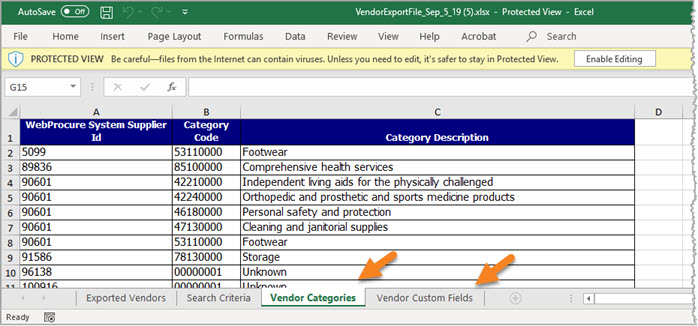
- Export Categories - Include a Vendor Categories tab to list the WebProcure System Supplier ID, Category Code, and Category Description for each of the exported vendors.
- Export Custom Fields - Include a Vendor Custom Fields tab to list the values contained in the Agency Specific Information that is established by the buying organization. Data includes: WebProcure System Supplier ID, and custom fields.
The system will display an exporting progress message.
See sample image below:
Make sure to click Enable Editing to be able to make edits and save the file.
The Vendor Export File will contain multiple tabs depending on the selections you made on the Choose Supplier Export Options window.
By default, the Exported Vendors and Search Criteria tabs will display for every supplier export.
-
Exported Vendors - The same suppliers that appeared on the Search Results page will be listed with all their associated information including contact and status information, etc. View sample image.
-
Search Criteria - The search criteria entered to obtain the listing of exported suppliers will be displayed.
View sample image.
If you selected Export Categories on the Choose Supplier Export Options window, then the Vendor Categories tab will be included in the export.
-
Vendor Categories - Lists the WebProcure System Supplier ID, Category Code, and Category Description for each of the exported vendors.
If you selected Export Custom Fields on the Choose Supplier Export Options window, then the Vendor Custom Fields tab will be included in the export.
- Vendor Custom Fields - Lists the values contained in the Agency Specific Information that is established by the buying organization for each of the vendors.
Search Results
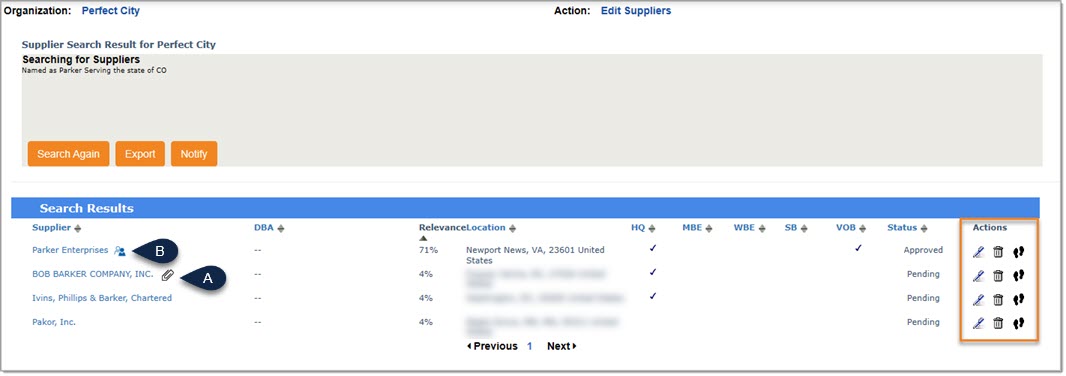
Each column heading is an active hyper link and may be selected as the primary sort.
Once selected, it may clicked again as a toggle to switch between ascending and descending order.
By default, if a Name or priority (Advanced) was used to search, the Search Results will be in relevance order.
If the search did not include criteria entered in the Name field or if priority searching wasn't used, the listing will be in alphabetical order.
-
Supplier - Each name is hyper linked. Select a link to view Supplier Information.
-
-
Attachment - (Reference B in the Edit Suppliers image below.)
Suppliers that have uploaded documents to be included with their profile, an Attachment icon will be visible to the right of their name.
Hover over the icon to view and open the attachment. -
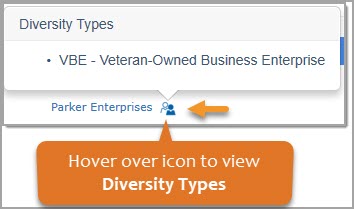
Diversity Types - (Reference A in the image below.)
Whenever the Diversity Types icon is visible to the right of a supplier name, it indicates that the supplier has one or more Diversity Types assigned. Hover over the icon to view the associated types.
-
For those organizations that utilize paid registration, suppliers that have a current paid registration, a Paid
 icon will be visible to the right of their name.
-
-
DBA (Doing Business As) Name
-
Relevance - This is a score based on how close to the search criteria this supplier matches.
This column is not visible if the Supplier Name field was left blank in your search criteria. Instead the results will be displayed in alphabetical order. -
Location - The supplier's primary address.
-
HQ - This column is checked if the listed location is the Headquarters for the supplier.
-
Attributes: If a check is displayed, the supplier has been designated as that particular category.
-
-
MBE - Minority Owned Business
-
WBE - Women Owned Business
-
SB - Small Business
-
VOB - Veteran Owned Business
NOTE: Be aware that buying organizations have the option to show or hide demographic information when searching, viewing or editing vendor profile information.
This includes diversity related details. -
-
Status - The current status of the supplier is shown. Possible options include:
-
-
Approved - Indicates that the supplier organization has been approved by your organization as a supplier.
-
Pending - Indicates that the supplier organization has not yet been approved by your organization.
-
Declined - Indicates that the supplier organization has been reviewed and as a result, declined.
This supplier will be unable to conduct business with the Buyer through the WebProcure system.
-