Actions - Group by Invoices/CM/PV
The following table represents the available Action options on an Invoice, Credit Memo, or Payment Voucher.
Select the  to view available options.
NOTE: The options will vary based on the document Status.
|
Option |
Icon |
Resulting Action |
||||||||
|
Edit |
|
This action is only avalable for Payment Vouchers. Select to copy the existing Payment Voucher details into a new Payment Voucher. When the Copy action is selected, the following information will be copied, but will be editable before Payment Voucher submission:
|
||||||||
|
Approval Map |
|
If an Invoice or Payment Voucher workflow is in place for your organization, the Approval Map will display the path the document needs to take before it will be processed. See the View Invoice - Approval Map topic to learn more. |
||||||||
|
Cancel |
|
Select Cancel to cancel the document before it is matched, (invoice or credit memo), awaiting approval or after a document has been rejected (invoice, credit memo, or payment voucher). Be advised, this action is immediate. Status will change to Cancelled. The association of the Invoice or Credit Memo to the Purchase Order will be removed. |
||||||||
| Cancel Request for Credit |  |
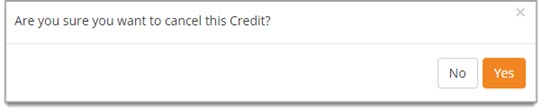
For credits with a status of Submitted for Credit, the Cancel Request for Credit option will be available. Select this action to cancel the invoice and also send a response to your ERP system signalling the cancellation. Once selected, the following confirmation message will display:
If you proceed to cancel the request for credit by selecting Yes, the message that has been entered in the Admin module, if any -- Manual Invoice/Credit Cancel in ERP -- text box will display. After the ERP accepts the cancellation, the Invoice Status will change to Request for Credit Cancelled. |
||||||||
|
Cancel Request for Payment |
|
For invoices with a status of Submitted for Payment, the Cancel Request for Payment option will be available. Select this action to cancel the invoice and also send a response to your ERP system signalling the cancellation. Once selected, the following confirmation message will display:
If you proceed to cancel the request for payment by selecting Yes, the message that has been entered in the Admin module, if any -- Manual Invoice/Credit Cancel in ERP text box will display. After the ERP accepts the cancellation, the Invoice Status will change to Request for Payment Cancelled. |
||||||||
|
Delete |
|
The Delete action is only available for Invoices that are Not Matched or Rejected and Payment Vouchers that are in a Payment Voucher Created or Rejected status. A confirmation message will display. The Invoice or Payment Voucher will no longer display on the Invoice/Credit/Payment Voucher List or in the Cross-Reference view, however, it is considered a soft delete and may be retrieved for auditing or other purposes. |
||||||||
|
Edit |
|
Select Edit to modify an existing Invoice, Credit Memo or Payment Voucher. See the Invoice Edit topic for more information. |
||||||||
|
Edit and Resubmit |
|
If your organization has enabled the Allow Invoice Edit and Resubmit for Cancelled Invoices/Credits setting in the Admin module, then the ability to Edit and Resubmit will be available on invoices in the Request for Payment Cancelled status and credits in the Request for Credit Cancelled status. Select the Edit and Resubmit icon to open the invoice or credit for editing and resubmit the invoice or credit. |
||||||||
|
Match Invoice |
|
Select Match Invoice to perform the matching process to match an Invoice to a Purchase Order and/or Receipt. See Invoice Matching topic to learn more about this process. |
||||||||
|
|
|
Select Print option to generate a printable view of the Invoice, Credit Memo or Payment Voucher (depending on the Document Type). |
||||||||
|
Re-Send to ERP |
|
This action effectively re-sends Invoices to buyer ERP systems, and is controlled by a Re-send Documents to Financial System privilege assigned to user roles from their respective Role Management pages. Also, this option is only visible on invoices that are in the following status:
For more information, see the Re-Send Invoice to Financial System topic. |
||||||||
|
Supplier Notification |
|
Select Supplier Notification to communicate with the vendor regarding the Invoice, Credit Memo, or Payment Voucher via fax or email. |
||||||||
|
View History |
|
Select View History to view a log of the Invoice, Credit Summary, or Payment Voucher Summary, (depending on the Document Type) including date and time stamps of actions taken and the user that performed that action. |
||||||||
|
View |
|
Select View to open the Invoice View, Credit Summary, or Payment Voucher Summary, (depending on the Document Type) providing details and attachments, if any. The Invoice View also provides access to the Invoice History. |
||||||||
|
View Matches |
|
Select View Matches to view the existing match between Invoice and Purchase Order and the Invoice and the Receipt . See the Invoice Matching topic to learn more about matching. |
||||||||
| Void Payment | |
For those customers that are integrated with an ERP system and if the Enable Void Payments permission is assigned to your profile, the option to Void Payment will be available on those invoices with a status of Paid. Voiding the invoice indicates the invoice is not paid and releases the match against the receipt. See Void Payment topic for more information. |





If you expand an invoice to view purchase order details, the Actions column will allow you to:
|
Option |
Icon |
Resulting Action |
|
View Order Details |
|
Select to view the Purchase Order details. |