Approval Preview
The Approval Preview page details a document’s approval workflow, including current status, previous approvals performed, future approvals required and any invited reviewers. Documents include solicitations, requests, invoices and contracts.
Approval Preview is available from various listing pages throughout the application.
Both approvers and reviewers may view the Approval Preview page, but functions related to approving or rejecting a document are only available to approvers.
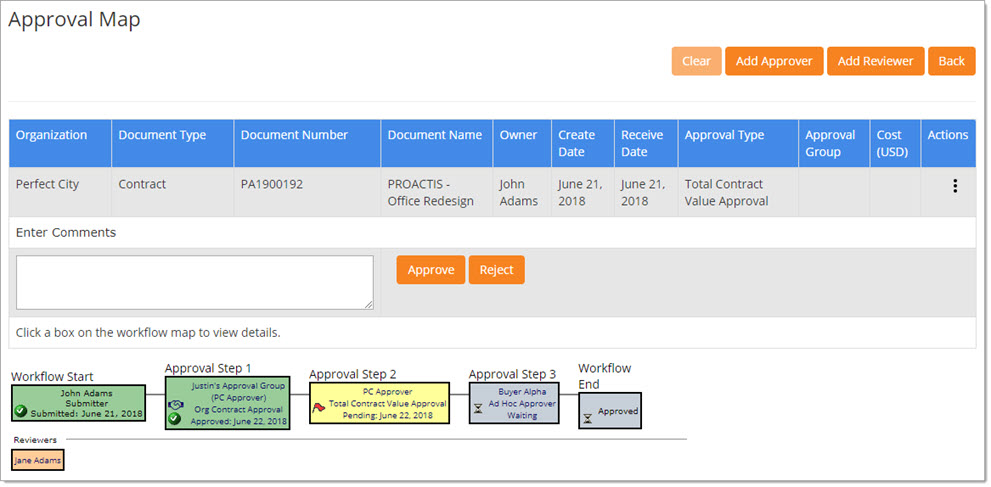
The Approval Preview page provides a physical depiction of the approvals required in order for the document to move forward. Each step in the workflow process is numbered. For example, Approval Step 2.
The final box in the map details the end result of the approval workflow, for example, purchase order or solicitation.
Serial / Parallel
-
Serial Approval - Approvals occur one after another.
Each approval is completed in a designated order; a document is not available to an approver until approved by the previous approver. -
Parallel Approval - A parallel approval occurs independently of other approvals.
All approvals must occur before the document can move forward to that next stage.
Color Coding
The colors of each box in the approval map help to clarify the status of that approval.
-
Green - The color green indicates that the document has been submitted or already approved. The box contains the document owner or approver’s name, the date when the request or solicitation was submitted or approved, the user’s function (e.g., Requisitioner, Solicitation Owner, Spending Limit) and the action that occurred (Submitted or Approved). The box also displays the Approved
 icon .
 -
Yellow - The color yellow indicates that the document is currently pending this approval. The box contains the approver’s name, the type of approval required (e.g., Spending Limit, Budget Code) and the date the document appeared in the Approver's Inbox. The box also displays either the Current
 icon,
to signify that the document is in your approval list and requires action, or the Pending
icon,
to signify that the document is in your approval list and requires action, or the Pending  icon, to signify that the document requires action by another approver.
 -
Red - The color red indicates that this approver rejected the document. The box contains the approver’s name, the type of approval required (e.g., Spending Limit, Budget Code) and the date the user rejected the document. The Rejected
 icon is also visible. An email notification
of the rejection is sent to the document’s owner, who can edit and resubmit the document or cancel it.
icon is also visible. An email notification
of the rejection is sent to the document’s owner, who can edit and resubmit the document or cancel it. -
Gray - The color gray indicates that steps are required before the action designated by this box can occur. All boxes will remain gray until an open document has been submitted to approval. For approval steps, the box contains the approver’s name and the type of approval required. The final box in the approval path, purchase order, solicitation Open, or solicitation Awarded will remain gray until all approvers have approved the document. Each step waiting on previous approvals or actions displays the Waiting
 icon .
 -
Orange - Added reviewers will display in an orange box, below the approval workflow path.
Electronic Signature
If your organization has E-Sign Enabled for one or more Approval Rules, the Signature Required  icon will be visible in the approval map box or boxes. Visit the topic regarding approving and signing for more details .
Approver Details
To view information about an approver/reviewer and the comments they have provided, select the user’s name in the box on the approval map.
The Approver Information window opens.
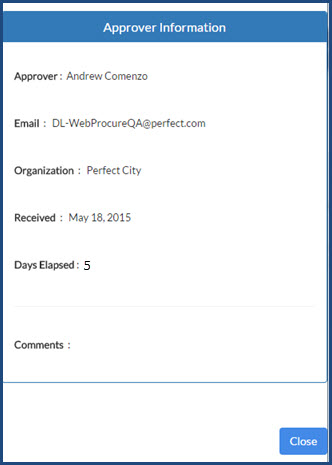
Information includes: the approver/reviewers name, their email address, their comments, for approvers, the date the document came to their approval Inbox and the date it was rejected or approved.
Click Close to return to the Approval Preview page.
Actions
Select the  to view available options.
|
Option |
Icon |
Resulting Action |
|
|
|
Select Print to generate a printable version of the document. |

Add Approver
If necessary, an approver may be added manually to a document. The added approver will be identified as a Ad Hoc Approver. Select the Add Approver button at the top of the page.
The page will refresh to display new Add Before / Add After icons. 
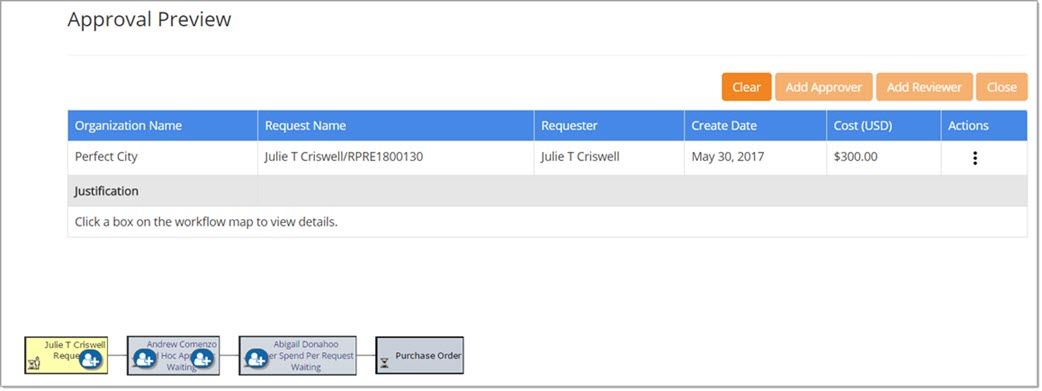
Click Clear to proceed without adding an ad hoc approver.
The above image represents a request document; however, the same functionality is available for solicitations and contracts. Zooming in on the first Requisition Total Approver (PC Approver), notice that there are two Add icons available.
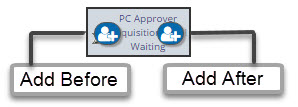
In this example, selecting the left Add icon will place the selected ad hoc approver before PC Approver in the workflow path. Selecting the right Add icon, will place the selected ad hoc approver after PC Approver in the approval workflow.
In this second example, notice that there is only one Add icon available for selection on the second Requisition Total Approver ( Top A Approver).
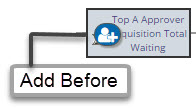
Top A Approver is the final approver in the approval path before this request becomes a purchase order. This scenario only occurs when buying organizations choose to restrict an ad hoc approver from being added after a final structured approver in the workflow path. If this restriction feature is not enabled, then a second Add icon would be visible on the right. Selecting it would allow you to add an ad hoc approver after Top A Approver as the final approver in the workflow path.
Once an Add icon is selected, the selection window opens.
The Add Approver window allows the addition of an Individual Approver or an Approval Group.
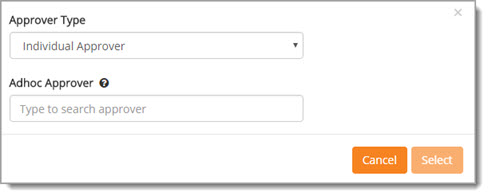
Approver Type
Select the Approver Type from the drop-down menu.
Options include Individual Approver and Approval Group.
Search and Select
NOTE: The ability to add in a document originator, such as the requester or solicitation creator, into the workflow process must first be enabled by an internal Proactis Administrator. Also, the ability to repeat ad-hoc approvers in an approval path must first be enabled by an internal Proactis Administrator. For more information regarding either of these enhancements, please contact your internal WebProcure Administrator to have them contact their assigned Proactis Account Manager.
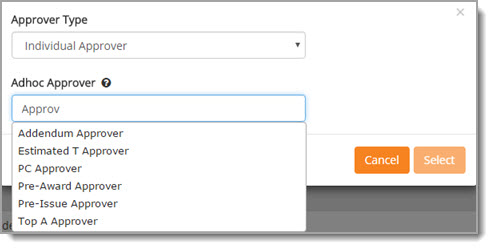
The Ad-Hoc Approver field contains type-ahead functionality.
As you begin entering the name of the Approver or Approval Group, the system will retrieve matching results.
Two asterisks (**) may be entered to retrieve a complete listing of all available Approvers or Approval Groups.
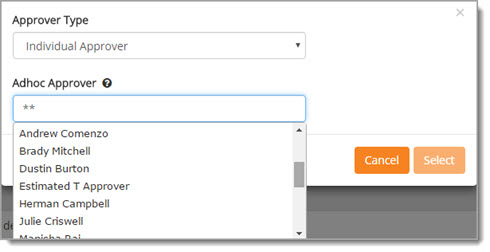
Click the name of the Approver or Approval Group to highlight the name or group name.
Once the Ad Hoc Approver field is populated with your selection, click Select.
The approval path will update with the added ad-hoc approver.
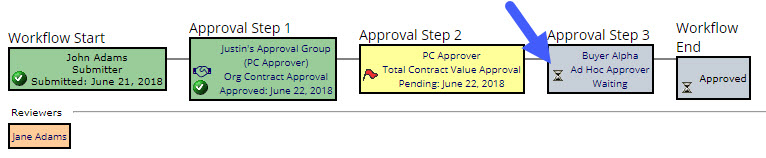
In the above example, Buyer Alpha was added as the Ad-Hoc Approver after PC Approver.
It’s important to note that when an ad-hoc approver or approval group is added, they are connected to the approver or approval group to which the Add icon was used.
To further explain, I’ll use the above steps and images. The right Add icon on PC Approver was used to select and add Buyer Alpha as the ad-hoc approver that would be placed after that approval step. If for any reason, the request is modified in a way that impacts the workflow, such as reducing the total contract value and PC Approver's approval is no longer required, then the connected ad-hoc approver (Buyer Alpha) will also be removed.
If an approver has been added, the workflow diagram will automatically update. The manually added Approver or Approval Group will show as an Ad-Hoc Approver . The status of the approval will also be displayed.
An Approver or Approval Group may appear multiple times in the same workflow path.
NOTE: If a document has an Approval Group assigned, the approval step box will include both the Approval Group name and ultimately the individual within that group that actually performed the approval or rejection.
In addition to adding an Ad-Hoc Approver, a Reviewer may also be added.
Add Reviewer
The steps to manually add a Reviewer are similar to that of adding an Approver.
The Reviewer does not have approval authority but is able to review the document and add comments, if desired.
To add a Reviewer, select the Add Reviewer button.
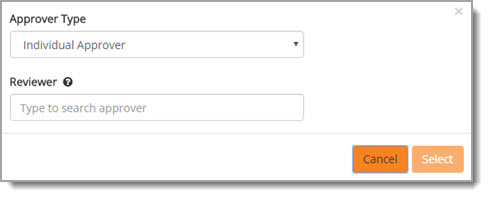
The Before and After icons are not available when adding a Reviewer.
The Reviewer field contains type-ahead functionality. As you begin entering the name of the Approver (Reviewer) or Approval Group, the system will retrieve matching results.
Two asterisks (**) may be entered to retrieve a complete listing of all available Approvers (Reviewers) or Approval Groups.
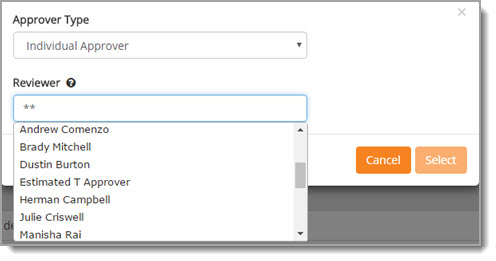
If a user has already been designated as an Approver on this document, their name will not appear in the list of potential reviewers.
Click the name of the Approver or Approval Group to highlight the name or group name.
Once the Reviewer field is populated with your selection, click Select.
The approval path will update with the added reviewer.
As with Approvers, once Reviewers are added to the document, they cannot be removed.
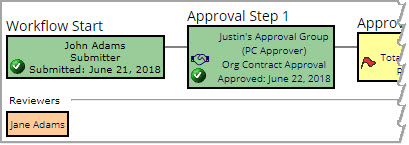
When the Reviewer has been added, the workflow diagram will automatically update. The manually added Reviewer will display beneath the approval workflow.
Approve, Reject, Add Comments
The Approve and Reject buttons will be visible if the Approval Preview was accessed from the Approval Inbox.
Visit Approval Inbox topic to learn more.
The Add Comments button will be visible if the Approval Preview was accessed from the Reviewer Inbox.
Visit Reviewer Inbox topic to learn more.
Create Solicitation
If the Document Type is a Request, additional buttons will be visible on the Approval Preview page, including Create Solicitation.
NOTE: The visibility of this button is permission driven. Please contact your WebProcure Administrator for more information.

This allows the decision to take a purchase request to a bidding process while having complete visibility to the approval workflow map all from one location.
Click a link below to learn more about solicitation creation.
Create Contract
NOTE: Users must be assigned a role that includes the Create Contract from Request permission assigned.
Visit the Create Contract from Request topic for more information.